
How to Find Throughput Without Guesswork
To really get a handle on your system’s throughput, you need to measure the rate of successful data or transactions it can process over time. This isn’t just about hitting a big number. It’s about finding the right metric—like requests per second, bytes transferred, or even better, the useful work done (goodput)—and then using the right tools to simulate a realistic load while you watch how your system behaves. The whole point is to uncover your system’s true capacity, not just its theoretical limit on a perfect day.
Understanding What Throughput Really Means

Before you can start measuring, you have to be crystal clear on what you’re measuring. Just counting requests per second is a classic rookie mistake. Sure, a server might churn through 10,000 requests per second, but if half of them are throwing errors, your useful throughput is actually much, much lower. This is where the idea of “goodput” comes in, and it’s a game-changer.
Goodput is all about the useful work your system gets done. It filters out all the noise—the failures, the retries, the protocol overhead. Think of it like a highway’s capacity: raw throughput is the total number of cars on the road, but goodput is the number of cars that actually reach their destination without getting stuck in a jam or breaking down. Our comprehensive guide on how to measure throughput really digs into these crucial distinctions.
Differentiating Key Throughput Metrics
The right metric to track depends entirely on what your application does. A video streaming service is going to care way more about sustained megabytes per second (MB/s) than a financial API, where the number of successful transactions per second is king.
Choosing the right metric is the first step toward getting meaningful data. This table breaks down the common ones to help you decide.
Key Throughput Metrics Explained
| Metric | What It Measures | Best Used For |
|---|---|---|
| Bandwidth | The maximum potential data transfer rate of a network path. It’s a theoretical ceiling. | Network capacity planning and identifying infrastructure bottlenecks. |
| Requests per Second (RPS/QPS) | The total number of requests a server or API handles in a second. | Getting a quick, high-level pulse on web server and API activity. |
| Goodput | The rate of successful, non-duplicate data or transactions delivered. | Accurately measuring real system efficiency and the actual user experience. |
Ultimately, picking the right metric helps you focus on what truly impacts performance for your specific workload.
The core task is to move beyond vanity metrics. A high RPS value is useless if it corresponds with a high error rate. Always correlate your throughput numbers with system health indicators like CPU load, memory usage, and latency.
The Impact of Real-World Traffic Patterns
You can’t get an accurate throughput measurement without understanding the traffic patterns your system will face in the wild. For instance, global mobile data traffic hit an astonishing 188 exabytes per month in Q3 2025, a 20% jump from the previous year, fueled mostly by video. According to the latest Ericsson Mobility Report, this explosive growth means networks have to handle much higher data volumes for every single user, which has a massive impact on any throughput calculation.
This is exactly why finding throughput isn’t a simple speed test. It’s about understanding how your system holds up under realistic pressure. It’s what prepares you to interpret the results correctly and make smart, targeted improvements that actually matter.
Choosing Your Throughput Measurement Toolkit
To get a real grip on your system’s throughput, you have to move from theory to practice. That means picking the right tools for the job. Your goal is to generate a realistic load against your system and see how it holds up, and the best way to do that is by simulating what your users actually do. Simple, scripted tests often give misleading results because they can’t replicate the chaos of real-world behavior.
This is exactly where a tool like GoReplay changes the game. Instead of you guessing at user behavior, GoReplay captures live traffic from your production environment and replays it in a safe staging or test environment. It’s an incredibly powerful method because you’re testing with the exact request sequences, headers, and payloads your system faces every day. You’re not just hitting a single endpoint; you’re recreating the entire, unpredictable user journey.
This screenshot from the GoReplay homepage shows you exactly how it works—acting as a bridge between your live and testing environments to ensure your tests are as real as they get.
It’s all about closing the gap between a synthetic test and what your application truly experiences under pressure.
Comparing Load Generation Approaches
While traffic replay is my go-to for realism, it helps to know how it stacks up against other popular load testing tools. Each one has its own strengths, and the best choice really depends on what you’re trying to accomplish.
Here’s a quick rundown:
-
GoReplay: The best choice for regression testing, performance validation before a big release, or infrastructure migrations. Its superpower is realism. It uses actual production traffic, which helps uncover sneaky bugs and performance issues that scripted tests almost always miss.
-
k6 (by Grafana Labs): This is a modern, developer-friendly tool perfect for writing performance tests in JavaScript. If you’re focused on API load testing and want to bake performance checks directly into your CI/CD pipeline, k6 is a fantastic option.
-
Apache JMeter: The old guard of performance testing. JMeter is a powerful, Java-based tool with a full GUI. It’s incredibly versatile and supports a ton of protocols, making it a solid pick for complex, end-to-end testing scenarios that go way beyond simple HTTP requests.
So, which one should you use? It comes down to your objective. Trying to confirm a new code change didn’t tank performance under a real-world load? GoReplay is your answer. Trying to find the absolute breaking point of a brand-new API endpoint? A script-based tool like k6 might get you there faster.
The gold standard for pre-deployment confidence is testing with a mirror of your production traffic. It eliminates assumptions and tests how your entire system interacts under a realistic load, not just isolated components.
A Practical Scenario with GoReplay
Let’s walk through a common situation. Imagine you’re about to push a major update to your e-commerce platform, and you’re worried it might slow down the checkout process during peak traffic.
Here’s how you’d use GoReplay to safely measure the throughput of your new system:
- Capture Traffic: First, you’d use GoReplay to listen to your production servers and record the live HTTP traffic, saving it to a set of files. You can even get specific and filter for only checkout-related API calls.
- Replay in Staging: With the traffic captured, you deploy the new version of your application to an identical staging environment.
- Run the Test: Now for the fun part. You point GoReplay at the staging environment and replay the captured traffic. You can even amplify the load to simulate 2x or 5x the normal traffic, pushing the system to see where it starts to buckle.
This process lets you find performance bottlenecks under a genuine load without ever putting your customers at risk. By monitoring the staging environment during the replay, you’ll know exactly how your new code will perform before it ever sees the light of day. This is how you stop guessing about capacity and start knowing for sure.
Setting Up Your System for Clear Visibility
Generating a bunch of traffic is only half the story. If you can’t see exactly how your system reacts under pressure, you’re just guessing. To really find your system’s throughput, you need to instrument your infrastructure so nothing is left to chance. This gives you a clear, data-driven picture of what’s actually happening.
A modern monitoring stack is a must-have for this. I’ll focus on two powerful, industry-standard tools that work great together:
- Prometheus: A time-series database that’s perfect for collecting and storing metrics from every corner of your system. It pulls data at regular intervals, giving you a continuous stream of health indicators.
- Grafana: This is where raw Prometheus data becomes useful. It’s a visualization platform that turns those numbers into intuitive, real-time dashboards where you can spot trends and problems at a glance.
This whole process follows a pretty straightforward workflow: capture real traffic, replay it to generate a realistic load, and then analyze the data to see how your system held up.
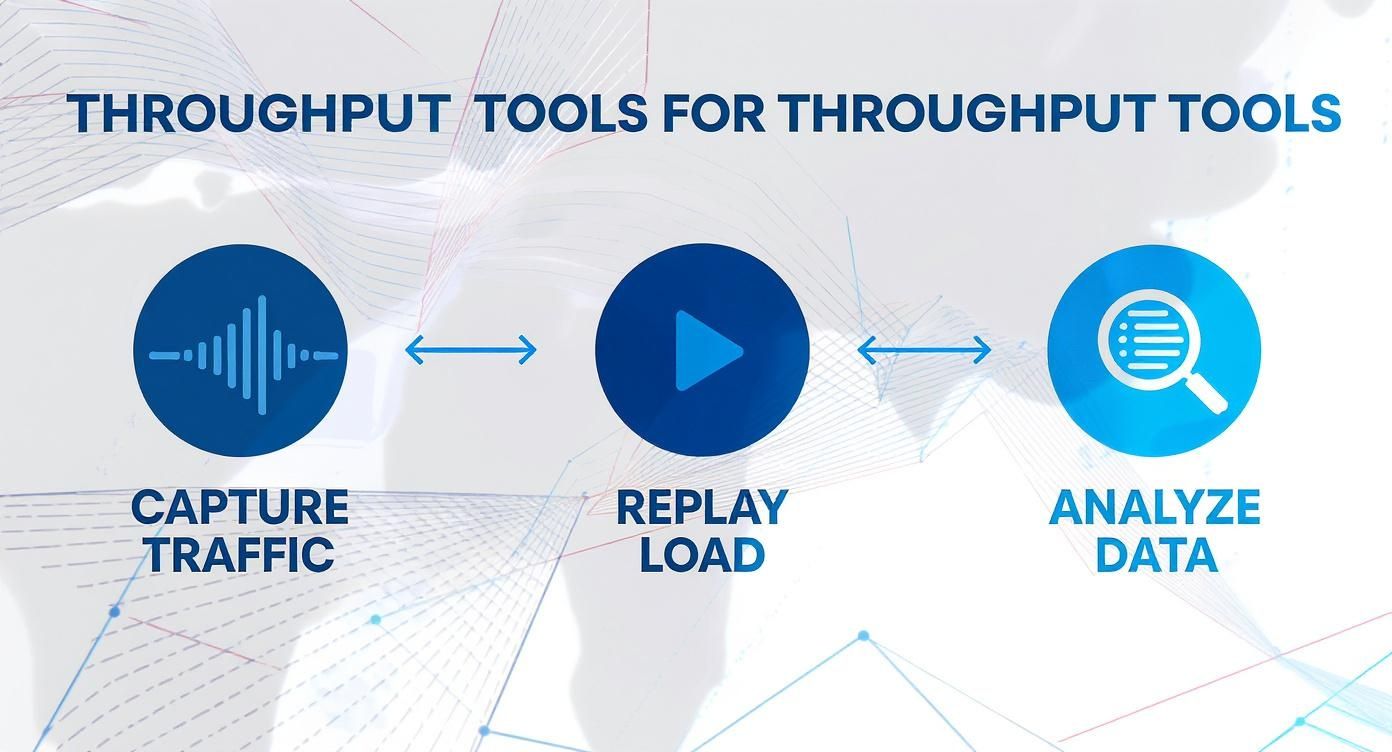
It’s a simple, repeatable loop: capture what your users are doing, replay it as a load test, and dig into the system data to find what broke.
Key Metrics to Monitor
Okay, so the load test is running. What should you be looking at? A good dashboard should let you directly correlate the replayed traffic with your system’s health. You’re hunting for that cause-and-effect relationship—when does the performance start to tank, and what resource is crying for help?
Start by tracking these fundamental, system-level metrics:
- CPU Usage and Load Average: Are your processors getting slammed? High CPU is a classic sign that a system is hitting its limit.
- Memory Pressure: Keep an eye out for excessive RAM usage or, even worse, swapping to disk. That’ll bring performance to a crawl.
- Disk I/O Wait Times: If your application is constantly just waiting for the disk, you’ve found a serious bottleneck that can kill your throughput.
- Network I/O: Make sure your network gear can actually handle the amount of data you’re trying to push through it.
Build a dashboard that shows these core metrics right alongside your traffic replay rate. You’ll be able to pinpoint the exact moment performance starts to suffer and immediately see which resource is the culprit.
Beyond System Metrics with Structured Logging
Metrics tell you what is happening, but it’s the logs that usually tell you why. While Prometheus gives you that 10,000-foot view, structured logs provide the ground-level context you need to solve the really tricky problems.
When you log key events in a consistent format like JSON, you can easily query them to uncover specific error patterns or trace a single slow request as it bounces between multiple services.
For instance, when your dashboard shows a sudden latency spike, you can dive straight into the logs from that exact timeframe. That’s how you find the specific database query or API call that went rogue. Understanding how to capture HTTP traffic for your replay is the first step; correlating it with detailed logs is what closes the loop.
This stuff isn’t getting less important, either. Projections show that global WAN traffic could hit an insane 6,641 exabytes per month by 2033, thanks to video, 5G, and AI. That growth underscores why robust monitoring is so critical—today’s capacity just won’t cut it for tomorrow’s demands. Getting your visibility sorted out now is the only way to prepare.
Analyzing Your Results to Find the Breaking Point

You’ve got a steady stream of monitoring data flowing in from your load test. Now it’s time to turn those raw numbers into real answers. We’re not just calculating throughput here; we’re trying to understand the story your system is telling us under stress. This analysis is where you find out what your system can actually handle.
Our main goal is to find the “knee point”—that critical threshold where performance suddenly drops off a cliff. As you slowly ramp up the replayed traffic, you’ll see throughput climb nicely while latency stays low and predictable. But eventually, you’ll hit a wall. A tiny increase in load sends latency through the roof and error rates start popping up. That’s your breaking point.
Identifying Performance Saturation
Your Grafana dashboards are your best friends for spotting resource saturation. You’re looking for those tell-tale patterns that scream your system is struggling to keep up. The moment you see a spike in response times, your next move is to immediately cross-reference it with your core system metrics.
Common signs that you’ve hit a limit include:
- CPU Load Over 80%: If your processor is pinned at this level for more than a few moments, you’re out of headroom. There’s simply no more capacity for new requests.
- Rapidly Increasing Memory Usage: Watch out for memory consumption that just keeps climbing without leveling off. This is often a precursor to memory swapping, which will absolutely tank your system’s speed.
- High Disk I/O Wait Times: This is a classic bottleneck for data-heavy applications. It means your storage just can’t keep up with the read/write demands being thrown at it.
These patterns are the clues that solve the mystery. For example, if latency spikes at the exact same time your database connection pool maxes out, you’ve found a direct cause-and-effect relationship.
Finding the breaking point isn’t about pushing your system until it crashes. It’s about methodically identifying the first resource that becomes a bottleneck, as this is the limiting factor for your entire system’s throughput.
Calculating Throughput from Your Data
Once the test is done, calculating the actual throughput your system sustained is pretty straightforward. Let’s say your server logs show 90,000 successful requests over a 10-minute test period. The math is simple: 90,000 requests / 600 seconds = 150 requests per second (RPS). As long as this number is paired with stable latency and low error rates, it represents your system’s reliable throughput.
But interpreting these results always requires a bit of context. The world of network performance is always in flux, especially with mobile tech. For instance, a recent surprising trend showed 5G download speeds actually declining in some markets while 4G speeds improved. This proves that raw speed isn’t everything; network optimization and regional rollouts play a massive role. You can dive into more of these nuanced global network trends on Opensignal.com. Keeping this bigger picture in mind is vital, as external factors can definitely influence the numbers you’re seeing.
Turning Your Findings into Performance Wins
Finding your system’s breaking point is just the diagnosis; now it’s time for the cure. Simply knowing your throughput limit doesn’t really help. The real value comes from connecting the dots between your findings and targeted engineering work. It’s about turning those patterns you saw in your dashboards into concrete improvements.
The very first step is to figure out what kind of bottleneck you’re dealing with. Performance issues almost always boil down to a handful of usual suspects: CPU, memory, database, or network. Your monitoring data is the key—it points you straight to the culprit and helps you break the painful cycle of guesswork and random “optimizations.”
Addressing CPU-Bound Bottlenecks
If your load test cranked your CPU utilization up to 90% or more, you’ve found your bottleneck. Your system is officially CPU-bound. The processor is the single biggest roadblock preventing you from handling more traffic. Your application is ready to do more work, but it’s stuck in line waiting for CPU cycles to free up.
To fix this, you have to figure out which part of your code is hogging all those cycles. This is exactly what code profilers were made for.
- Profile Your Application: Fire up a profiler specific to your language, like pprof for Go or
cProfilefor Python. These tools will give you a detailed breakdown of which functions are consuming the most CPU time. - Optimize the Hot Paths: Once you’ve identified the “hot paths”—the functions where your code spends most of its time—you can focus your energy there. Sometimes this means rewriting a clunky algorithm, caching the results of an expensive computation, or just cutting out unnecessary work.
You’d be surprised how often a small tweak to a high-traffic function can lead to massive gains in overall system throughput.
Solving Database Contention
Did you see your latency skyrocket at the exact moment your active database connections flatlined? That’s a textbook sign of database contention. Your application is spending more time waiting on the database than it is actually processing requests.
Don’t immediately jump to scaling up your database server. Most database performance issues stem from inefficient queries or poor connection management, not a lack of hardware power.
Before you throw more money at hardware, take a hard look at how your application talks to the database.
- Analyze Slow Queries: Use your database’s built-in tools (like
EXPLAIN ANALYZEin PostgreSQL) to get to the bottom of slow-running queries. Something as simple as adding a missing index can often cut query time from seconds down to milliseconds. - Tune Your Connection Pool: The size of your connection pool is a delicate balance. If it’s too small, your application will be starved for connections. If it’s too big, you risk overwhelming the database. Tweak your pool settings to find that sweet spot that matches your traffic patterns.
Overcoming Network and I/O Limits
Sometimes the code is efficient and the database is happy, but the system is still struggling. The bottleneck might be its ability to move data around—a classic network-limited or I/O-bound problem. Your monitoring might show high disk wait times or a network interface that’s completely saturated.
For these kinds of issues, the game plan shifts from optimizing code to simply moving less data.
- Payload Compression: Using something like Gzip or Brotli to compress API responses is a quick win. It dramatically cuts down on the amount of data sent over the network, freeing up precious bandwidth.
- Choose the Right Protocol: Take a moment to consider if a more efficient protocol could help. For internal service-to-service communication, for instance, switching to gRPC with Protocol Buffers can be significantly faster and lighter than traditional JSON over HTTP.
By matching the solution to the specific problem your data has uncovered, you create a clear and effective path to higher throughput and a much more resilient system.
Common Questions About Throughput Testing
When you start digging into throughput, a few practical questions always pop up. It’s one thing to understand the theory, but moving into a real test environment often surfaces roadblocks that most guides don’t cover.
Let’s tackle some of the most common points of confusion. Getting these right will help you pull more accurate and useful results from your performance analysis.
How Much Traffic Is Enough?
This is probably the biggest question, and there’s no single magic number. The goal isn’t just to flood your system until it breaks. It’s to understand its behavior at different load levels.
A great starting point is to simulate your typical production traffic (1x load). From there, you can methodically ramp it up to 2x, 5x, and even 10x.
This approach helps you find that crucial “knee point”—the exact moment performance begins to degrade. That insight is far more valuable than just finding the absolute crash point.
Is It Safe to Test in Production?
The short answer? Almost always no.
Running aggressive load tests in a live production environment is incredibly risky. A test can easily cascade into a full-blown outage, impacting real users and potentially corrupting data. The risk of creating a terrible user experience just isn’t worth it.
The best practice is to test in a staging or pre-production environment that is an identical mirror of production. This means the same hardware specs, network configuration, and data volume. It’s the only way to ensure your results are realistic without jeopardizing your live service.
This is where a tool like GoReplay is perfect. It lets you capture real production traffic and safely replay it in your isolated test environment, giving you the best of both worlds.
Differentiating Latency and Throughput
It’s easy to mix up latency and throughput, but they measure two very different aspects of performance.
Think of it like a highway:
- Throughput is the number of cars that can pass a certain point per hour.
- Latency is the time it takes for a single car to get from the on-ramp to its exit.
A system can actually have high throughput but also high latency. For example, a batch processing system might chew through thousands of records per minute (high throughput), but each individual record takes several minutes to complete its journey (high latency).
For any user-facing application, you need both high throughput and low latency to deliver a great experience. Finding the right balance between the two is the real key to effective performance tuning.
Ready to stop guessing and start testing with real production traffic? GoReplay lets you capture and replay user sessions safely in your staging environment, giving you the confidence to deploy without surprises. Check out our tools and get started at https://goreplay.org.