
Android ADB Commands: 2026 Guide
Most Android ADB tutorials start with “plug in a USB cable and run adb devices.” That advice still has a place, but it’s a poor operating model for modern CI/CD. A device that appears once in a terminal isn’t necessarily a device you can trust through a long test run, a network change, a user-profile switch, or a stricter Android security policy.
Android Debug Bridge is now a policy-dependent orchestration tool. The practical questions have changed. Which user owns the package? Is the device authenticated over a secure wireless connection? Will the session survive a network transition? Is a permission command blocked by the current security state? Can production-shaped traffic reach a safe environment without turning a mobile test into a toy simulation?
The commands themselves remain familiar. The way you use them needs to become more deliberate.
The Evolution of Android Debug Bridge
ADB began as a developer tool, but its role has changed as Android security and testing environments have matured. Android Debug Bridge was first released with the Android Software Development Kit in 2007, and Google later made it available as a separate download in 2017, according to the official ADB documentation. Commands such as adb devices, adb shell, adb pull, and adb install became standard for development, testing, and device administration.
That history explains the persistence of USB-first tutorials. USB still works well for device provisioning, recovery, and controlled lab work. It becomes a weak operating model when a test farm has shared devices, multiple users, remote runners, or long-lived jobs. Those environments need authenticated TCP/IP pairing, explicit target ownership, predictable session handling, and a record of the device policy applied to each action.
From an open bridge to a controlled interface
Earlier workflows often treated enabled debugging as broad administrative access. Teams built setup scripts around shell operations, granted sensitive permissions during provisioning, and expected identical behavior across Android versions and device policies. Modern Android no longer makes that assumption safe.
Commands that grant permissions such as WRITE_SECURE_SETTINGS, SYSTEM_ALERT_WINDOW, or REQUEST_INSTALL_PACKAGES through ADB may be blocked or narrowed by newer security modes. The analysis of modern Android ADB restrictions explains why a command that worked on one device can fail on another, even when the syntax and package are unchanged.
Google’s documentation now places secure TCP/IP pairing with adb pair alongside the familiar device and connection commands. The shift is operational, not cosmetic. A connection must identify an authorized host, the intended device, and the policy context before automation performs a state-changing operation.
Practical rule: Treat every ADB command as a request evaluated by the device’s current policy, not as a guaranteed administrative capability.
What this changes in a pipeline
A modern pipeline records more than an APK path. It should associate each run with the device serial, active user context, pairing state, package state, and diagnostic artifacts. Multi-user test farms also need ownership controls so one job cannot install, reset, or inspect the wrong target.
ADB can support realistic shadow testing when combined with traffic replay tooling such as GoReplay. A test runner can install the candidate build on an isolated device, replay production-shaped requests against a safe environment, and compare behavior without sending real users’ traffic to the test target. The bridge handles device and app control; the replay tool supplies conditions that a basic mock rarely reproduces.
If adb install succeeds while a later pm grant fails, restarting the daemon or replacing the cable may change nothing. The operating system may have rejected an outdated setup step. Record that boundary, keep provisioning separate from execution, and choose a supported test path instead of treating every ADB failure as a connectivity problem.
Establishing Resilient Device Connections
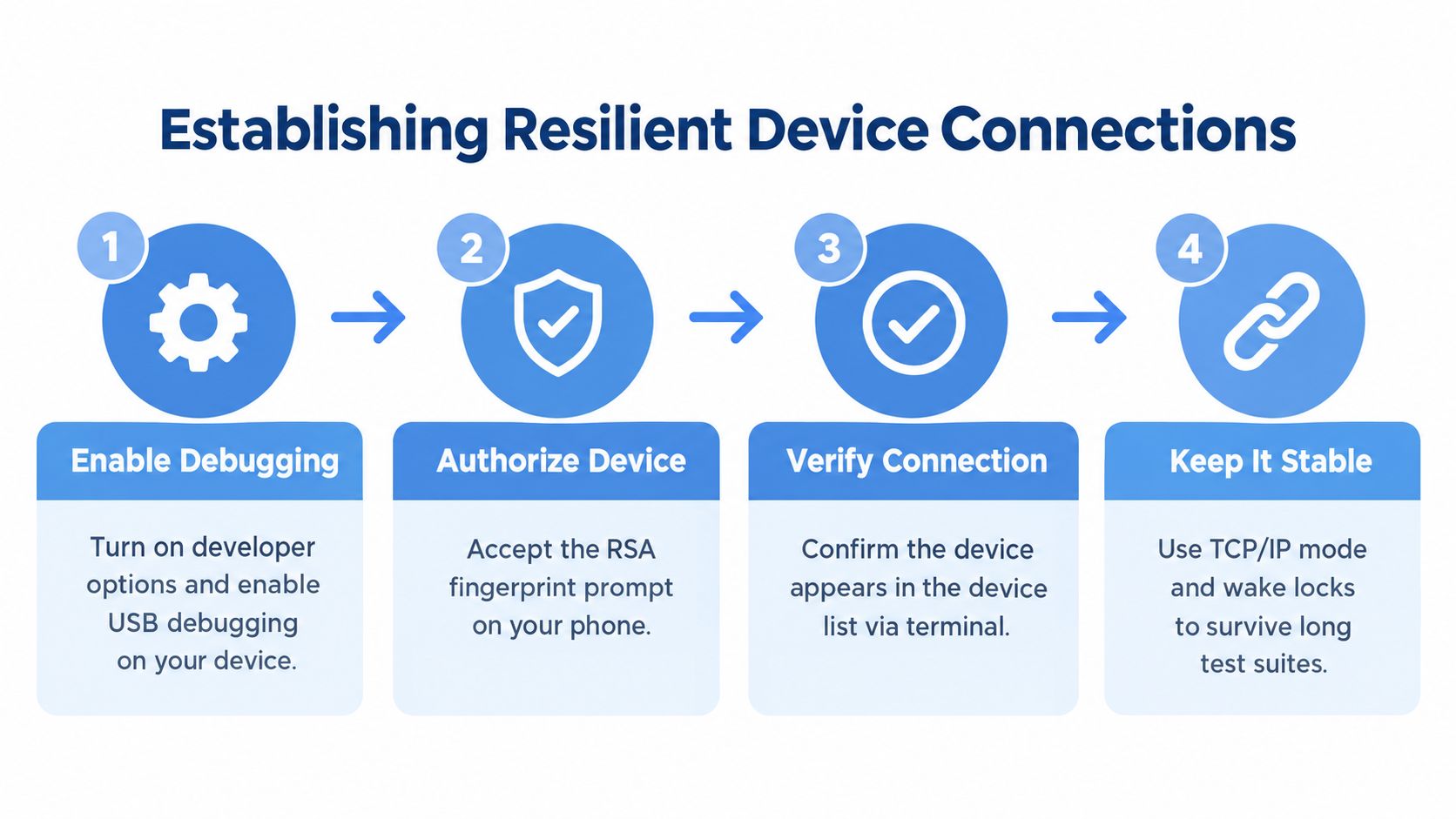
Getting a device into the output of adb devices proves very little. A long-running suite can still fail when a laptop sleeps, a wireless network changes, a firewall interrupts pairing, or another device receives the command intended for the test target.
Start with explicit authorization
For a controlled setup, begin with the device’s developer options and USB debugging enabled. Connect it by USB, then run:
adb devices
The first connection normally requires accepting the RSA fingerprint prompt on the device. Don’t automate past that step blindly. Capture the serial returned by the command and use it in later commands:
adb -s SERIAL shell getprop ro.product.model
adb -s SERIAL shell getprop ro.build.version.release
The -s SERIAL selector is more important than many scripts acknowledge. Without it, a command can be sent to whichever target ADB chooses as the default, which is dangerous in shared runners and device labs.
Pair before connecting wirelessly
Modern wireless debugging should use authenticated pairing rather than treating a reachable TCP endpoint as sufficient. On the device, enable wireless debugging and obtain the pairing information. On the host, run:
adb pair PAIRING_ENDPOINT
Enter the pairing code when prompted. After pairing, establish the ADB session with:
adb connect CONNECTION_ENDPOINT
adb devices
Keep pairing and connecting conceptually separate. Pairing authorizes the host. Connecting starts the working session. When a device should no longer be reachable from the runner, terminate the session explicitly:
adb disconnect CONNECTION_ENDPOINT
The current ADB command reference documents adb pair, adb connect, and adb disconnect as part of this secure TCP/IP workflow. Wireless debugging can reduce cable management, but it introduces network dependencies, so the runner should verify the connection before every test allocation.
Design for mobility and interruption
The newest ADB command line with Android Platform Tools v37 and Android 17 devices can keep devices connected when the network changes or the host machine shuts down, as described in Google’s Android developer tooling update. That capability addresses a real operational problem, but it doesn’t remove the need for health checks.
A practical connection loop should:
- Select the device by serial.
- Confirm that
adb get-statereports a usable target. - Run a lightweight shell probe before starting the suite.
- Detect
offlineorunauthorizedstates. - Reconnect or quarantine the device instead of continuing with partial results.
Use wake and power-management controls appropriate to your lab, and keep the display from sleeping when UI tests depend on an active screen. Don’t assume a wireless session is stable just because the first command worked. Stability is a property of the entire test interval.
App Lifecycle and Package Management
Application deployment is where ADB becomes part of CI/CD, not just a developer tool. A reliable pipeline installs the intended artifact, establishes a known application state, launches the correct entry point, and records package details that can explain a failure later.
A basic deployment sequence might look like this:
adb -s SERIAL install -r app-debug.apk
adb -s SERIAL shell am force-stop com.example.app
adb -s SERIAL shell monkey -p com.example.app 1
The -r flag updates an existing installation while retaining application data. That speeds up iteration, but retained state can hide migration defects. A clean-state test should clear the package data before launch:
adb -s SERIAL shell pm clear com.example.app
Use pm clear deliberately. It removes local test state, including data needed to reproduce a production issue. Define separate pipeline modes for clean installation, upgrade installation, and state-preserving reruns. Each mode answers a different testing question.
Make launches deterministic
ADB’s package manager and activity manager provide enough control to exercise specific lifecycle paths:
adb -s SERIAL shell am force-stop com.example.app
adb -s SERIAL shell am start -n com.example.app/.MainActivity
adb -s SERIAL shell am start -a android.intent.action.VIEW -d "example://orders/123"
adb -s SERIAL shell dumpsys package com.example.app
am force-stop removes background execution from the previous run before startup. am start -n launches a known activity, while the deep-link command tests routing, intent handling, and initialization beyond the default screen. dumpsys package exposes declared activities, permissions, installation state, and other package metadata that helps distinguish a deployment problem from an application failure.
Capture this output with the test artifacts. A failed launch without the package state leaves the next investigation dependent on guesswork.
Split APKs and bundle-derived builds require the complete device-targeted artifact set. A single APK file may not represent the installable application. Make the build produce the correct splits, then fail the deployment stage clearly when one is missing. A successful ADB command only confirms that ADB accepted the operation. It does not prove that the intended variant is installed or runnable.
Handle multi-user package state
A package can exist on a device while remaining unavailable to the profile running the test. For user-scoped installation and removal, follow the Android multi-user testing documentation. Keep those profile-specific operations in the enterprise workflow rather than duplicating them in every application deployment script.
The deployment stage should verify package state after installation, launch the app under the same profile that executes the test, and report installation failures separately from startup failures. That separation makes profile visibility, permissions, and application defects easier to diagnose than a generic test failure.
File Transfer and Storage Operations
Test data often determines whether a mobile test is realistic. A small fixture can validate a happy path, but a production-shaped database, media set, export file, or crash artifact exposes storage, parsing, and performance problems that a tiny sample won’t.
The core transfer commands are straightforward:
adb -s SERIAL push fixtures/orders.json /sdcard/Download/orders.json
adb -s SERIAL pull /sdcard/Download/test-output.zip artifacts/test-output.zip
adb -s SERIAL shell ls -lah /sdcard/Download
adb -s SERIAL shell df -h
adb push moves data from the runner to the device. adb pull retrieves it. For repeatable provisioning, keep fixture creation on the host and transfer only the files needed for the current scenario. That reduces unnecessary device mutation and makes the test input auditable.
Choose the storage location deliberately
The apparent simplicity of /sdcard can be misleading. Shared storage is convenient for files that a user or another test tool must access, but application-private directories provide stronger isolation. A test that writes directly into a private path may need the application itself, a debuggable build, or a device-supported export mechanism to make the data available.
Don’t solve every access problem with broad permissions. If a test requires a file, place it in a directory the application is designed to read, or expose a controlled test-only interface. This approach survives scoped-storage restrictions better than scripts that depend on unrestricted filesystem access.
For large datasets, reliability usually matters more than shaving a command from the script. Split provisioning into named stages, verify the destination after transfer, and record a checksum or file-size expectation in the test metadata. If a transfer is interrupted, rerun the isolated stage rather than repeating the entire application setup.
Pull evidence before cleanup
Crash artifacts and ANR evidence should be collected before the test resets the application or reboots the device:
adb -s SERIAL shell dumpsys activity processes
adb -s SERIAL shell dumpsys meminfo com.example.app
adb -s SERIAL pull /data/anr artifacts/anr
Access to protected paths varies by build type and device policy, so a failed pull doesn’t automatically mean that no diagnostic exists. Use application-visible logs, test output directories, and supported debugging interfaces where direct access is denied.
A practical storage workflow has three rules:
- Provision intentionally: Transfer only the fixtures required for the scenario.
- Verify placement: Confirm that the application can see the file from the same user and storage context as the test.
- Collect before reset: Pull logs, traces, screenshots, and generated exports before cleanup removes them.
The fastest file operation is the one that leaves a reproducible test state. A marginally quicker transfer that creates hidden dependencies will cost more during failure analysis.
Networking and Traffic Capture for Testing
A mobile backend test can pass with synthetic requests and still fail under the timing, headers, payloads, retries, and sequencing produced by real users. Traffic replay helps close that gap, but ADB’s job is narrower. It connects the Android device to the capture or test environment, while the replay system handles request storage, filtering, and delivery.
Suppose a QA engineer needs to validate a new checkout service against interactions generated by a mobile build. The phone runs the application, the host captures traffic through an approved test proxy, and the replay target points to a staging service. The phone must reach the host reliably, and the test must avoid sending credentials or production mutations into the replay environment.
Use forwarding for local development
ADB can expose a service running on the host to the device:
adb -s SERIAL reverse tcp:LOCAL_PORT tcp:DEVICE_PORT
The exact ports depend on the local application and test harness. After establishing the reverse mapping, the Android application can use the expected local endpoint instead of requiring a publicly reachable development server. Remove the mapping when the test finishes:
adb -s SERIAL reverse --remove-all
Forwarding works well for a local mock server, an instrumentation service, or a controlled capture endpoint. It isn’t a substitute for validating the network conditions that matter in production. A loopback-style development path may hide DNS, TLS, latency, proxy, and connection-reuse behavior.
ADB also supports host-side forwarding for services exposed by the device:
adb -s SERIAL forward tcp:LOCAL_PORT tcp:DEVICE_PORT
Use a clear naming convention for mappings, verify them with adb forward --list or adb reverse --list, and clean them after every run. Stale mappings are a common source of misleading test results.
Keep replay safe and representative
A traffic replay workflow should separate capture from replay:
- Capture an approved interaction set from a controlled client or environment.
- Remove or mask credentials, tokens, personal data, and production identifiers.
- Route replay requests to staging or an isolated shadow service.
- Preserve request ordering and session relationships where application behavior depends on them.
- Compare responses, errors, and service-side effects without allowing destructive operations.
For capture mechanics and traffic-handling patterns, the GoReplay guide to capturing network traffic provides relevant implementation context. The important engineering decision is not to replay everything. Select flows that represent the behavior under test, then define which requests may be mirrored and which must be dropped or transformed.
A device proxy can provide better visibility than relying on ADB alone, especially when the application uses multiple services. However, certificate pinning, encrypted protocols, and platform security controls may prevent inspection. Don’t weaken production security settings to force capture. Use a test build, an approved instrumentation path, or server-side observability when the client cannot be inspected safely.
The video below shows a terminal-oriented approach to analyzing Android traffic during development.
The strongest shadow test combines realistic mobile sequencing with strict safety controls. ADB provides the plumbing. Your replay configuration determines whether the result is useful evidence or merely a large volume of requests.
Debugging Logs and Screen Capture
When a UI test fails, the final assertion rarely explains the whole problem. The useful evidence usually includes the application log, system events, screen state, current activity, and a record of what the test attempted immediately before the failure.
Start a clean log capture before launching the test:
adb -s SERIAL logcat -c
adb -s SERIAL logcat -v threadtime > artifacts/logcat.txt
Run the suite in the foreground, then stop the log process when the test ends. For a focused terminal view, filter by tag or severity:
adb -s SERIAL logcat ActivityManager:I MyAppTag:D *:S
The *:S portion suppresses unrelated tags, while the explicit priorities keep the output manageable. Don’t filter too aggressively during an unknown failure. A system warning that looks unrelated may explain why an activity never launched, why a permission dialog appeared, or why a process was killed.
Capture visual state at the failure point
Screenshots and recordings turn an ambiguous assertion into inspectable evidence:
adb -s SERIAL exec-out screencap -p > artifacts/failure.png
adb -s SERIAL shell screenrecord --time-limit 30 /sdcard/failure.mp4
adb -s SERIAL pull /sdcard/failure.mp4 artifacts/failure.mp4
The recording command writes to the device first, so the pipeline must pull the file before cleanup. Keep capture duration bounded and name artifacts with the test identifier, device serial, and execution result.
For UI hierarchy problems, dump the current view tree:
adb -s SERIAL shell uiautomator dump /sdcard/window.xml
adb -s SERIAL pull /sdcard/window.xml artifacts/window.xml
This helps distinguish a missing element from an element that exists but is not visible, enabled, or reachable by the automation framework.
Add context, not just volume
Use these commands when the failure needs system context:
adb -s SERIAL shell dumpsys window
adb -s SERIAL shell dumpsys activity top
adb -s SERIAL shell dumpsys gfxinfo com.example.app
dumpsys activity top can identify the foreground activity. Window information helps explain overlays and focus problems. Graphics information can expose rendering behavior without requiring a human to reproduce the issue manually.
A screenshot tells you what the user saw. Logcat and
dumpsyshelp explain why the device reached that state.
Collect artifacts in a predictable directory and attach the command output to the same CI result as the test report. Avoid treating a failed artifact command as the primary test failure. Mark the artifact as unavailable, preserve the original error, and let the test result describe the application problem separately.
Multi-User and Enterprise Automation Workflows
A device with multiple Android users is not a single test environment with extra labels. Each profile can have different package visibility, application data, permissions, and foreground state. A pipeline that always targets the system user can report success while a work profile remains broken.
Start by identifying the available profiles:
adb -s SERIAL shell pm list users
Use the returned identifiers for later commands. On a controlled test device, profile lifecycle operations may include:
adb -s SERIAL shell pm create-user "QA Profile"
adb -s SERIAL shell pm remove-user USER_ID
Create and remove profiles sparingly in a shared lab. Device-owner policies, OEM differences, and cleanup requirements can make profile changes more disruptive than resetting an application.
Compare system-wide and user-scoped actions
Make the target profile explicit in deployment and test commands:
| Operation | Broad or default target | Explicit user target |
|---|---|---|
| Install an application | May affect the default context | adb install --user USER_ID app.apk |
| Remove an application | May remove from the default context | adb uninstall --user USER_ID PACKAGE |
| Run instrumentation | May execute against the default context | adb shell am instrument --user USER_ID ... |
| Inspect users | Not applicable | adb shell pm list users |
Android’s multi-user testing guidance documents user-scoped installation, uninstallation, and instrumentation. These commands let a test represent a work profile or another managed user instead of assuming the primary device owner.
Treat the user ID as a required pipeline input. Fail early when the requested profile does not exist, is not running, or is not the foreground profile required by the scenario. A silent fallback can produce a plausible result from the wrong environment, which is harder to diagnose than an explicit failure.
Test isolation, not only availability
Enterprise failures often occur at profile boundaries. An application may be installed correctly but read data from the wrong profile, receive a different permission result, or miss a managed configuration. Run the same scenario in the intended profile, then compare package state, data paths, permissions, and application results.
For broader mobile automation practices, the GoReplay resource on mobile app automated testing provides complementary context. Pairing ADB with traffic replay can support realistic shadow testing, but replay traffic must still be associated with the correct device and user profile.
Use separate credentials, fixtures, and artifact directories for each profile. Put the user ID in test names and reports. After a package command succeeds, verify availability from the target profile rather than treating device-level success as proof of user-level access. In enterprise CI, that verification separates a real profile test from a system-user smoke test.
Troubleshooting Connection and Permission Issues
ADB failures become easier to recover when the script separates transport health from Android policy. A daemon restart can repair a stale connection, but it cannot make a rejected operation valid. Diagnose the device state before changing the test or weakening security controls.
Diagnose the transport first
Run a small health probe and capture its output:
adb devices -l
adb -s SERIAL get-state
adb kill-server
adb start-server
adb connect CONNECTION_ENDPOINT
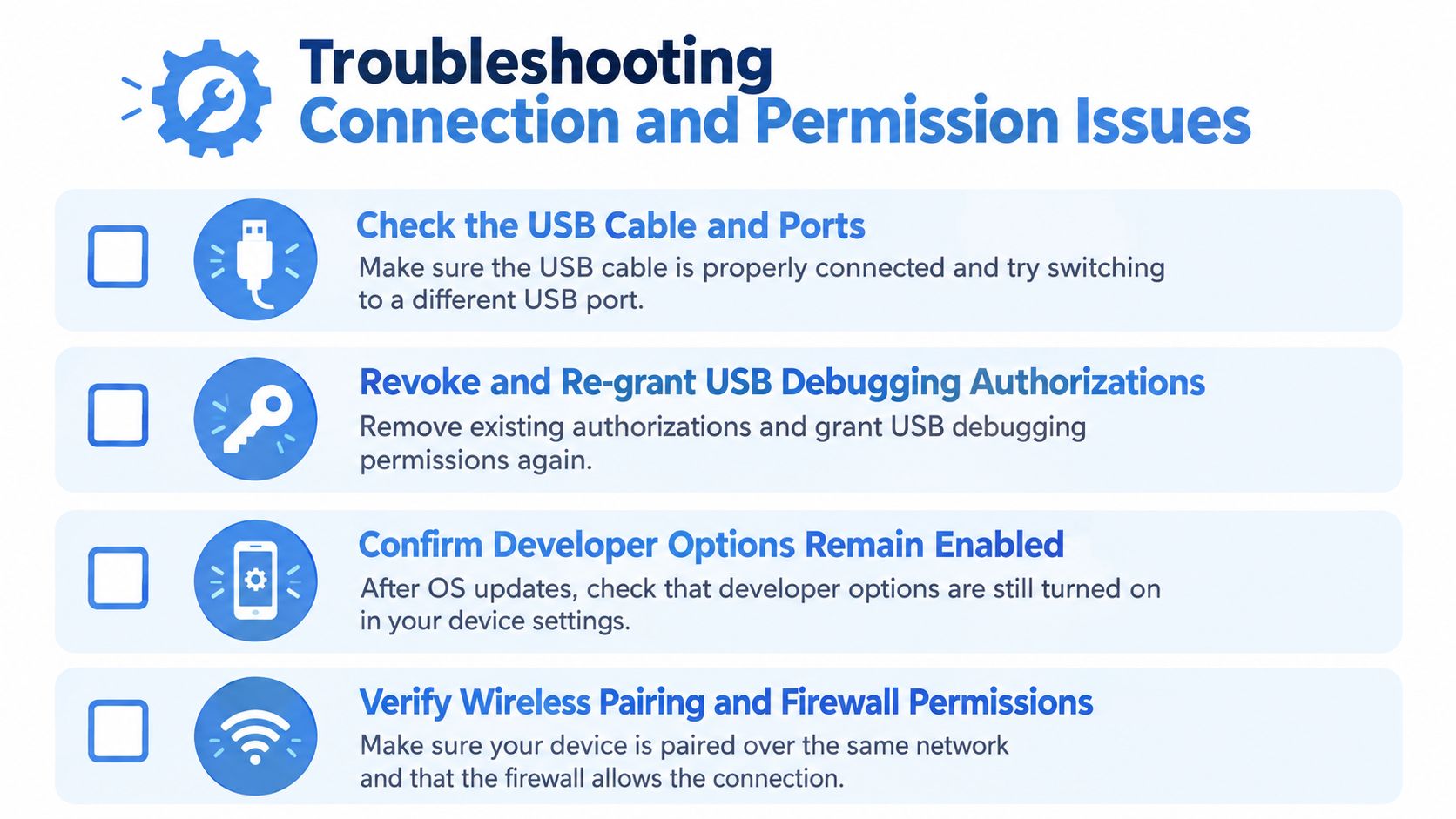
The device list shows whether the host can see a target, while get-state confirms whether ADB considers it usable. An unauthorized result means the phone has not accepted the host key. An offline result usually points to a stale transport, interrupted wireless session, or unresponsive daemon. A missing device shifts the investigation toward the cable, USB mode, pairing state, network path, or firewall.
For USB recovery, change one variable at a time. Test another cable or port, confirm developer options remain enabled, and inspect the authorization prompt on the device. For TCP/IP connections, verify that pairing is still valid and that the host and device can reach each other on the intended network. Check firewall rules before repeatedly restarting ADB. A paired device can still fail when routing or filtering changes.
Classify rejection separately
A working adb shell session does not prove that every command is permitted. As noted in the evolution of ADB, sensitive permission grants are increasingly constrained by newer security modes. For background on these ADB permission restrictions, see the coverage of ADB permission restrictions. Use the exact failure output to identify the boundary rather than treating it as a connection problem.
| Symptom | Likely class | Useful response |
|---|---|---|
Device is unauthorized | Trust not granted | Revoke and re-grant debugging authorization |
Device is offline | Transport instability | Reconnect, restart the daemon, or quarantine the target |
| Shell works, permission grant fails | Policy restriction | Check the Android security state and use a supported alternative |
| Wireless pairing fails | Pairing or network issue | Re-pair, verify reachability, and inspect firewall rules |
| Package works for one profile only | User-scope mismatch | Install and test with the explicit user ID |
Replace unsupported grants with a test build, a supported management mechanism, or an application-level test hook that exposes only the required behavior. Do not reduce device protection just to preserve an old setup script.
Make failures actionable
Record the Platform Tools version, device build, serial, user ID, connection mode, and exact command output for each failed run. Include these fields in CI artifacts. A permission error without device and profile context is difficult to reproduce because policy and user scope can change the result.
Keep recovery bounded. Reconnect the target, run a safe health probe, and quarantine it after repeated instability. Retrying a destructive setup sequence indefinitely can conceal infrastructure faults and consume the runner allocation.
For realistic backend validation, GoReplay can mirror approved HTTP traffic into staging or shadow services. Associate each replay with the correct ADB serial, user ID, and connection mode so a successful network test does not conceal a failed device setup.
The goal is not universal command success. It is a reliable distinction between transport failure, authorization state, user context, package state, and an intentional security boundary.