
A Practical Guide to JMeter for Performance Testing
If you’ve spent any time in performance engineering, you’ve heard of Apache JMeter. It’s the powerhouse, open-source tool built specifically to load test applications and measure performance. At its core, it’s a pure Java application designed to simulate a heavy load on a server, network, or application, letting you analyze how it all holds up under pressure. This is why using JMeter for performance testing is an industry-standard practice for building reliable and scalable systems.
Why JMeter Is Your Go-To Performance Testing Tool
When teams need to know how their application will behave when things get intense, they almost always reach for JMeter. Its popularity isn’t just about being free—it’s about its raw power and flexibility. Being Java-based means it’s completely platform-independent. You can design and run your tests on Windows, macOS, or Linux without changing a thing.
That adaptability is a massive advantage. It frees your team from vendor lock-in and creates a consistent testing environment, whether you’re on a developer’s laptop or a CI/CD build agent. The capabilities are deep, letting you build out complex test plans that genuinely mimic how real users interact with your application.
Simulating Real-World Conditions
One of JMeter’s greatest strengths is its ability to simulate a huge number of concurrent users. You can configure your test to gradually ramp up users, hold a steady load for a set period, and then ramp back down, all while hammering your servers with requests. This is how you find those critical performance bottlenecks before they affect your customers.
And JMeter isn’t just for web traffic. It handles a massive array of protocols, including:
- Web Services: You can thoroughly test both SOAP and RESTful APIs.
- Databases: Send SQL queries directly to your database via JDBC drivers to test its performance.
- Messaging Services: JMeter easily interacts with message-oriented middleware like JMS.
- Mail Protocols: It even supports testing SMTP, POP3, and IMAP servers.
Key Takeaway: The real magic is in its ability to script complex user journeys. You can parameterize data to simulate unique user actions and use assertions to validate responses, ensuring your tests aren’t just generating load but are also confirming your application works correctly under stress.
A Powerful Community and Ecosystem
Perhaps one of the most compelling reasons to use JMeter is its massive, active community. This vibrant ecosystem means you’re never really on your own. If you hit a wall, there’s a good chance someone has already solved that exact problem and shared the answer in a forum or blog post.
This community support also fuels a rich library of plugins that extend JMeter’s core features, from advanced reporting graphs to integrations with other tools. Its widespread adoption is undeniable—with over 28,000 companies using it, JMeter holds a significant 11.7% market share in the software testing space. The tool is most popular in the Information Technology and Services sector, which makes up 29% of its user base. You can explore more details about JMeter’s market adoption to get a sense of its global reach.
Getting Your JMeter Environment Ready for Action
A solid setup is the bedrock of reliable performance testing. Before you can start hammering your application and finding those pesky bottlenecks, you need a stable environment. The good news? Getting JMeter up and running is surprisingly simple. Because it’s a pure Java application, it works just about anywhere—Windows, macOS, or Linux.
The only real prerequisite is having a compatible Java Development Kit (JDK). JMeter is built on Java, so this is non-negotiable. A quick java -version in your terminal will tell you if you’re good to go. If not, just grab a recent JDK for your operating system and install it first.
Installing Java and JMeter
Once Java is on your machine, you need to set the JAVA_HOME environment variable. This little step tells JMeter where to find your Java installation, and getting it right from the start will save you from a whole category of frustrating startup errors. The process is slightly different for each OS, but it boils down to pointing the variable to your JDK’s root directory.
With Java sorted, installing JMeter is as easy as downloading a file. Head over to the official Apache JMeter website and grab the latest stable release. You’ll want the binary archive—either a .zip or .tgz file.
- Download: Snag the binary from the JMeter download page.
- Unzip: Extract it somewhere sensible, like
C:\JMeteron Windows or/Users/your-user/jmeteron macOS.
Take it from me: avoid directories with spaces in their names. It can lead to weird, hard-to-debug issues with scripts down the road. Once it’s unzipped, you can navigate to the /bin folder and launch JMeter by running jmeter.bat (Windows) or jmeter.sh (macOS/Linux).
If you’re on a Mac, I highly recommend using Homebrew. A simple
brew install jmeterhandles the entire installation and path setup for you in one command. It’s a lifesaver.
Understanding the Directory Structure
Take a minute to poke around the JMeter folder. Knowing what’s where will pay off big time. The /bin folder is where you run JMeter from, but other directories are just as important. The /lib directory, for instance, holds all the core Java Archive (.jar) files JMeter needs. And the /lib/ext subdirectory is your go-to spot for adding plugins or JDBC drivers later.
Speaking of plugins, the very first thing you should do is install the Plugins Manager. For some reason, it doesn’t come bundled by default. Just download the Plugins Manager JAR file and drop it into that /lib/ext directory. Restart JMeter, and you’ll see a new “Plugins Manager” option in the menu.
Must-Have Plugins for a Professional Setup
The Plugins Manager is your gateway to a huge ecosystem of extended functionality. While you could spend all day browsing, there are a couple of plugins I consider essential for any serious JMeter for performance testing setup.
- 3 Basic Graphs: This bundle adds three listeners that should have been included in the core product: Active Threads Over Time, Response Times Over Time, and Transactions per Second. They give you an immediate, visual gut-check on how your test is running.
- PerfMon Metrics Collector: This is the real game-changer. This listener lets you monitor the server-side health of your application while the test is running. You can track critical stats like CPU, memory, and network I/O, allowing you to directly correlate a performance dip with a resource bottleneck on the server.
Installing these two right away elevates JMeter from a basic tool to a professional-grade testing powerhouse. It gives you the visibility you need to not just run tests, but to actually understand the results.
How to Build a Realistic Performance Test Plan
Moving beyond simple environment checks is where performance testing with JMeter really gets interesting. A truly great performance test doesn’t just throw random traffic at your server; it meticulously mimics real human behavior to uncover authentic bottlenecks. This means simulating complete user journeys, handling dynamic data like session IDs, and validating that the application actually works as expected under pressure.
The goal is to craft a script that mirrors how people actually use your site. Think about a typical e-commerce flow. Users don’t just land on the homepage and stop. They search for products, add things to a cart, log in, and eventually check out. A powerful test plan replicates these multi-step processes to put realistic strain on your entire application stack, not just one isolated endpoint.
Capturing User Journeys with the Script Recorder
Trying to manually build a complex user journey with dozens of HTTP requests is a recipe for frustration and error. This is exactly why JMeter’s HTTP(S) Test Script Recorder is your best friend. It functions as a proxy, capturing every single request your browser sends as you navigate through your web app.
To get going, you add the recorder element to your Test Plan and tweak your browser settings to route traffic through JMeter’s proxy. As you click through a user flow—like logging in, browsing a few products, and adding one to the cart—JMeter automatically creates the corresponding Sampler requests for you. It’s a massive time-saver and ensures you don’t miss any of the background API calls that modern web apps constantly make.
What you get is a raw, unfiltered sequence of requests. While it’s a fantastic starting point, this recorded script is rarely ready to run out of the box. It’s littered with hardcoded values and lacks the dynamic variability needed for a proper load test, which brings us to the next crucial steps.
Making Your Scripts Dynamic with Correlation
Modern applications are anything but static. When a user logs in, the server generates a unique session token. When they add an item to their cart, a unique cart ID is created. A recorded script captures these values as plain text, but in a real test, they would be different for every single user and every session.
This is precisely the problem that correlation solves. It’s the art of extracting a dynamic value from one server response and injecting it into a subsequent request.
For instance, after a login request, the server might send back a JSON response containing an authToken. You’d use a JSON Extractor (a Post-Processor in JMeter) to grab that token and store it in a variable. Then, in all future requests that need authentication, you’d use that variable instead of the static, recorded one.
Pro Tip: Mastering correlation is what separates a novice JMeter user from an experienced performance engineer. Without it, your tests are doomed to fail because your virtual users won’t be able to maintain a valid session with the application.
This process ensures every virtual user operates with its own unique session, just like a real person would.
Simulating Multiple Users with Parameterization
Blasting your server with the same exact request 1,000 times isn’t a realistic load test. Real users have different login credentials, search for different things, and buy different products. Parameterization is the technique of replacing these hardcoded values in your script with variables pulled from an external data source, usually a simple CSV file.
The CSV Data Set Config element is the go-to tool for this in JMeter. You just create a CSV file with columns for each piece of data you want to make dynamic—for example, username, password, and search_term.
Here’s the typical workflow:
- You create a file, say
users.csv, with your test data. - You add a CSV Data Set Config element to your Thread Group.
- Point it to your
users.csvfile and define the variable names (username,password). - In your HTTP Request, you replace the hardcoded login details with
${username}and${password}.
As JMeter executes the test, each virtual user grabs a new line from the CSV file for each iteration. This guarantees your test simulates a diverse range of user inputs and cleverly avoids caching effects that can seriously skew your results. It’s an incredibly effective method for testing login flows, search functionality, and form submissions at scale.
This diagram shows how everything fits together—from the base Java requirement to the JMeter core and the plugins that give it specialized powers.
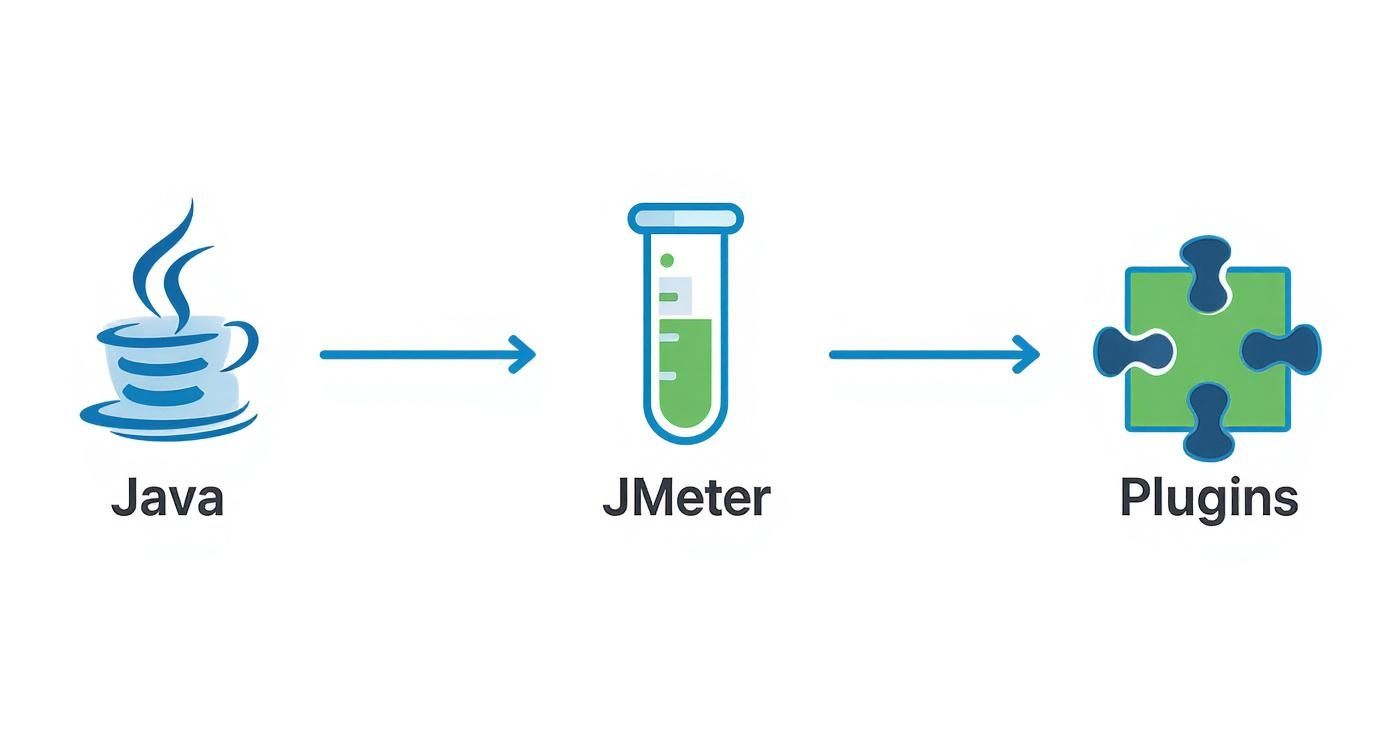
As the visual suggests, a solid JMeter setup is layered, with plugins providing the specific functionality you need for comprehensive testing.
While creating synthetic data is powerful, some teams want even greater realism. For those looking at advanced techniques, you can explore how to replay production traffic for realistic load testing to create hyper-realistic scenarios.
Validating Responses with Assertions
Generating load is only half the job. You also need to confirm your application is returning the correct responses under that load. After all, what good is a 200ms response time if the page is just serving up an error message?
This is where Assertions come in. You add them to your Samplers to validate the responses you get back from the server.
Some of the most common Assertion types include:
- Response Assertion: Checks if the response text, code, or headers contain (or don’t contain) a specific string. For example, you can assert that the response body includes “Welcome, User!” after a successful login.
- Duration Assertion: Fails any request that takes longer than a specified number of milliseconds. This is absolutely critical for enforcing Service Level Agreements (SLAs).
- JSON Assertion: Designed specifically to validate JSON responses, letting you check for the presence of a key or the value of a specific JSON path.
Adding assertions effectively transforms your load test into a functional test running under load, giving you confidence that your application is not only fast but also correct.
Before we dive into building a test plan, let’s look at the core components you’ll be working with. Each element has a specific job, and understanding their roles is key to creating effective and realistic performance tests.
Essential JMeter Test Plan Components
| Component Type | Example Element | Purpose in Performance Testing |
|---|---|---|
| Test Plan | Test Plan | The root element that contains all other test components. |
| Users | Thread Group | Defines the number of virtual users (threads) and how they will behave (ramp-up, loops). |
| Requests | HTTP Request Sampler | Represents a single user action, like making a GET or POST request to a web server. |
| Logic | If Controller, Loop Controller | Controls the flow of execution, allowing for conditional logic or repeated actions. |
| Configuration | CSV Data Set Config | Loads data from external files to parameterize requests, making tests more realistic. |
| Data Extraction | JSON Extractor | Extracts dynamic data from server responses (like session IDs) to use in later requests. |
| Validation | Response Assertion | Checks if the server response is correct (e.g., contains expected text or returns a 200 OK code). |
| Pacing | Constant Timer | Pauses execution between requests to simulate user “think time,” creating a more realistic load. |
| Results | View Results Tree, Summary Report | Collects and displays test results, helping you analyze performance metrics and identify errors. |
These building blocks are the foundation of any good JMeter script. By combining them, you can simulate nearly any user scenario imaginable.
Mimicking Human Pacing with Timers
Finally, remember that real users don’t fire off requests as fast as a machine can. They pause to read, think about their next click, or fill out a form. Without these natural delays, your test will generate an artificially high and unrealistic load on the server.
Timers are what you use to introduce delays between requests to simulate this “think time.” The most common one is the Constant Timer, which adds a fixed delay. For even more realism, the Uniform Random Timer is often a better choice because it adds a variable delay within a range you specify. Adding timers helps your load profile more closely match real-world traffic patterns, which leads to far more accurate and meaningful performance test results.
Running Your Tests and Making Sense of the Results

With a realistic test plan in hand, it’s time for the main event. A perfectly crafted script is just a starting point; the real value comes from running it effectively and translating the mountain of data it produces into actionable insights about your application’s performance.
First things first, you need to define your load profile in the Thread Group. This is where you tell JMeter how to simulate user traffic. You’ll set the number of virtual users (threads), how quickly they ramp up, and the test’s duration. A common strategy is to start with a gradual ramp-up—it’s a great way to see exactly how performance degrades as the load climbs.
GUI Mode vs. Command-Line Mode
When you’re starting out, running everything from JMeter’s graphical user interface (GUI) is incredibly tempting. It’s visual, intuitive, and perfect for building and debugging your test plan. Listeners like the “View Results Tree” are a lifesaver for troubleshooting, showing you every single request and response in real-time.
But here’s a critical mistake many beginners make: running a full-scale load test in GUI mode. The GUI itself eats up a surprising amount of memory and CPU, which can interfere with JMeter’s ability to generate load accurately and, worse, skew your results.
Critical Best Practice: Use GUI mode for scripting and debugging only. For actual performance tests, you must run JMeter from the command-line interface (CLI). CLI mode is far more efficient and the undisputed industry standard for reliable load generation.
Running from the CLI is actually quite simple. You just save your test plan (.jmx file) and execute a command in your terminal. This tells JMeter to run the test without the GUI, log all results to a file, and generate a handy HTML report when it’s done.
A typical command looks something like this:
jmeter -n -t /path/to/your/testplan.jmx -l /path/to/results.jtl -e -o /path/to/output/dashboard
Let’s break that down:
-n: Runs JMeter in non-GUI (CLI) mode.-t: Specifies the path to your test plan file.-l: Points to the JTL file where raw results will be logged.-e: Instructs JMeter to generate the HTML report after the test.-o: Sets the output directory for that report.
Decoding Key Performance Metrics
Once the test completes, you’re left with a results file. The real work in JMeter for performance testing is interpreting this data. While listeners like “View Results Tree” are great for debugging, the Aggregate Report is one of the most useful for high-level analysis.
This report gives you a summary table packed with critical metrics for every sampler in your plan. Understanding these numbers is the key to spotting problems.
- # Samples: The total number of requests sent for a specific action.
- Average: The average response time. It’s a useful starting point but can be skewed by extreme outliers.
- Median: The midpoint of all response times. 50% of responses were faster than this value, making it a more reliable indicator of typical performance.
- 90% Line (90th Percentile): This is a crucial one. It tells you that 90% of responses were faster than this value, helping you understand the worst-case experience for most of your users.
- Error %: The percentage of requests that failed. Anything above 0% needs immediate investigation.
- Throughput: How many requests your application handled per second. This is a direct measure of your server’s capacity.
These metrics provide a solid overview, but for a truly deep dive, nothing beats the HTML Dashboard Report.
Dissecting the HTML Dashboard Report
JMeter’s built-in HTML Dashboard Report is its most powerful analysis tool. It generates an interactive, multi-page report that visualizes your test results with detailed charts and tables, making it much easier to spot trends and pinpoint bottlenecks.
The report is loaded with information, including an APDEX (Application Performance Index) score, a request summary, and detailed statistics. One of the most valuable sections contains charts plotting metrics over time. For instance, the “Response Times Over Time” graph shows you the exact moment when response times started to climb during the test.
By correlating this with the “Active Threads Over Time” graph, you can determine the precise user load at which your application’s performance began to suffer. This visual evidence is incredibly powerful for identifying performance ceilings and communicating your findings to the team.
JMeter is praised for its extensive features, from its variety of samplers and controllers to its detailed reporting. This combination, along with support for distributed testing, makes it a powerhouse for performance validation. You can read more about JMeter’s powerful features and see how it stacks up against other tools.
Ultimately, running a test is easy. The real skill is turning the raw data into a clear story about your application’s health. By using the command line for execution and the HTML report for analysis, you can effectively measure performance and drive meaningful improvements.
Integrating JMeter into Your CI/CD Pipeline
Getting comfortable with JMeter is one thing, but taking your performance testing skills to the next level means weaving it directly into your development lifecycle. Running tests by hand is a great start, but true performance engineering is all about automation. This is how you shift from putting out fires to proactively ensuring your app stays fast, catching regressions before they ever make it to production.
But before we can automate, we need to be able to generate some serious load. A single laptop, no matter how beefy, can only push so many virtual users before it becomes the bottleneck itself. That’s where distributed testing comes in.
Scaling Your Load with Distributed Testing
Distributed testing lets you chain multiple machines together—we call them load generators—to simulate a massive user base. The concept is pretty simple: it’s a master-slave setup. One JMeter instance acts as the master to orchestrate the test and collect the results, while several other slave (or agent) instances do the heavy lifting of actually sending requests.
Getting this up and running just takes a few configuration tweaks:
- All machines, both the master and slaves, need to be on the same network subnet.
- The JMeter and Java versions must be identical everywhere. Consistency is key.
- On each slave machine, you’ll kick off the
jmeter-serverprocess. - Back on the master, you just need to update a properties file with the IP addresses of all your slave nodes.
When you fire up the test from the master, it automatically pushes your .jmx script to every slave. They all execute the test in sync, streaming their results back to the master for final analysis. This is the only way to realistically simulate the traffic you’d see during a major launch or sales event.
Automating Performance Tests with Jenkins
Once you can generate realistic load, the next logical move is to automate the whole thing in a CI/CD pipeline. Jenkins is a go-to choice for this, letting you trigger your performance tests automatically every time new code gets pushed. You get an immediate feedback loop, alerting your team the moment a change hurts performance.
The process is straightforward: you configure a Jenkins job to run your JMeter test from the command line, just like you would locally. You’ll just need to make sure the Jenkins server can access your JMeter installation and the test script, which should ideally live in your version control repository alongside your code.
The real magic, though, is the Jenkins Performance Plugin. This plugin is a game-changer. After JMeter runs and spits out its JTL results file, the plugin parses it and builds clear, trendable graphs right inside the Jenkins dashboard.
This visual history is invaluable. You can see at a glance if the latest commit made things better or worse, comparing response times, error rates, and throughput from build to build.
Defining Automated Pass and Fail Criteria
The end goal of CI/CD integration isn’t just to run tests—it’s to create an automated quality gate. You want the pipeline to make a decision for you. The Performance Plugin lets you set exact pass/fail criteria.
You can configure your Jenkins job to fail the build automatically if performance drops below a certain threshold. For example, you could set rules like:
- Fail the build if the 90th percentile response time exceeds 2 seconds.
- Mark the build as unstable if the error rate climbs above 1%.
This automated enforcement of performance Service Level Objectives (SLOs) is the bedrock of a mature DevOps practice. It ensures that no code that degrades the user experience can ever sneak into the next stage of your deployment process.
As more teams try to avoid vendor lock-in, the open-source performance testing market is booming, projected to grow at a 15.22% CAGR and hit over $3 billion by 2030. This trend underscores just how critical it is to integrate tools like JMeter into automated workflows. You can read more about the performance testing market trends to see where things are headed.
For anyone serious about automation, diving into continuous performance tests is a fantastic next step. By baking JMeter into your CI/CD pipeline, you transform performance testing from an occasional chore into an essential, automated part of how you build software.
Got Questions About JMeter?
Even with a solid guide, you’re bound to hit a few snags when you’re deep in the trenches with a new tool. When it comes to JMeter for performance testing, a few common questions and myths pop up all the time. Getting these cleared up can save you a ton of frustration and make your tests way more effective.
One of the first things people ask is, “How many users can my machine handle?” The only real answer is, “it depends.” Things like the complexity of your script, how many assertions you’re running, and your machine’s own CPU and RAM all come into play. A simple script hammering a GET endpoint can generate way more load than a complex one that has to parse huge JSON responses.
Can JMeter Test Desktop Applications?
This is a classic point of confusion. The key thing to remember is that JMeter works at the protocol level. It’s brilliant at testing client-server applications because it sends requests over protocols like HTTP, FTP, or JDBC.
What it does not do is interact with GUI elements like a human would. So, you can’t use it to performance test a standalone desktop app in the traditional sense. However, if that desktop app talks to a backend server over an API, you can absolutely use JMeter to hammer that server-side communication and test its performance.
A good rule of thumb: If it sends a request over a network protocol JMeter supports, you can test it. If all the logic is self-contained in the app’s executable, you’ll need a different tool.
Is JMeter Still Relevant Today?
With all the slick SaaS platforms and new tools out there, you might wonder if JMeter is still a top contender. The answer is a hard yes. Its open-source DNA, massive plugin ecosystem, and deep-down power make it incredibly versatile and adaptable.
Here’s why it’s still a dominant force:
- No Vendor Lock-In: It’s open source. You have total control and aren’t stuck with a provider’s pricing or feature roadmap.
- Extensibility: The plugin library is huge. You can test almost anything and plug it into just about any other tool in your DevOps pipeline.
- Community Support: If you hit a wall, chances are someone in the massive JMeter community has already solved the same problem and posted the answer.
Newer tools might have a prettier UI, but JMeter’s raw power and flexibility keep it essential for any serious performance engineer. It gives you the control you need for the kind of deep, customized performance analysis that many other platforms just can’t touch.
At GoReplay, we believe in testing with realism. By capturing and replaying actual production traffic, you can create the most authentic load testing scenarios for JMeter, ensuring your application is ready for any challenge. Discover how to elevate your performance testing at https://goreplay.org.