
How to Calculate the Throughput of Your System
At its core, calculating throughput is pretty simple. You’re just dividing the total amount of “work” done by the time it took to do it. The basic formula looks like this: Throughput = Total Units / Time.
So, if your system crunched through 1,800 requests in 60 seconds, you’re looking at a throughput of 30 requests per second (RPS). But knowing the formula is just the beginning. The real trick is figuring out what “units” actually matter for your system.
What Throughput Really Means for Your System

Before you can measure anything, you have to get clear on what you’re measuring. Throughput isn’t some universal, one-size-fits-all metric. It’s a measure of output, and what that output is depends entirely on your system’s job. It’s the answer to the question, “How much work is our system actually getting done?”
This isn’t a new concept born from software engineering. The idea comes straight from manufacturing and operations, where it’s used to gauge efficiency. The classic formula is TH = I / T, where TH is throughput, I is inventory (or units produced), and T is the time period. You can find more on this foundational concept at Study.com.
Choosing the Right Throughput Metric
For a software system, that “inventory” could be anything from API requests to user sign-ups to gigabytes of video streamed. The goal is to pick the unit that best reflects what your system is built to do. Choose the wrong one, and you’ll end up with performance numbers that look great on a dashboard but mean nothing in reality.
For most applications, you can get started with one of these three common metrics:
- Requests Per Second (RPS): This is the bread and butter for web servers, load balancers, and APIs. It’s a raw count of how many HTTP requests the system can field. Simple and effective.
- Transactions Per Second (TPS): This one is more business-focused. It measures fully completed, end-to-end operations. A single e-commerce “purchase” transaction, for instance, could involve half a dozen API requests. TPS tells you how many successful purchases you can handle, which is a much better indicator of business value.
- Data Transfer Rate (bytes/sec): If your system is all about moving data—think video streaming, cloud backups, or a file-sharing service—then the raw number of requests doesn’t tell the whole story. What really matters is the sheer volume of data being pushed through the pipes.
Key Takeaway: The metric you choose frames the entire performance conversation. An API team might obsess over RPS, but the product manager cares a lot more about how many user sign-ups (a type of TPS) the system can support per minute.
Core Throughput Formulas at a Glance
Getting a handle on these basic formulas is crucial before you start digging into monitoring tools. Each one gives you a different lens to look at your system’s performance, and they are the building blocks for any meaningful analysis you’ll do later.
Here’s a quick summary of the primary formulas and where they fit best.
| Throughput Metric | Formula | Best Used For |
|---|---|---|
| Requests Per Second (RPS) | Total Requests / Total Time (in seconds) | APIs, web servers, and load balancers where request volume is the primary concern. |
| Transactions Per Second (TPS) | Total Completed Transactions / Total Time (in seconds) | E-commerce sites, financial systems, and databases where a complete business process is the unit of work. |
| Data Transfer Rate | Total Bytes Transferred / Total Time (in seconds) | Video streaming platforms, file storage services, and data-intensive applications. |
Think of this table as your starting point. Once you’ve identified the right metric for your system, you’ll be ready to move on to instrumenting your code and collecting real data.
Setting the Stage for Accurate Measurement
Jumping into throughput testing without a solid game plan is a recipe for misleading results. If you really want to understand how to calculate the throughput of your system, you have to start by creating a clean, controlled environment.
Think of it like a science experiment—you need to eliminate any variables that could taint your data.
The absolute first thing you have to do is isolate your test environment. Seriously. Running a load test on a machine that’s also juggling production traffic, developer tasks, or even random background updates will completely skew your numbers. These competing processes steal precious CPU cycles and memory, creating artificial bottlenecks that have nothing to do with your application’s real performance.
Establish a Stable Baseline
Before you fire off a single request, make sure your system is in a known, stable state. That means no recent deployments, no active database migrations, and no weird lingering processes from previous tests.
A “cold start” isn’t a realistic baseline, either. You need to let your application warm up and hit a steady operational state before you start measuring. Throughput is all about sustained performance, not a quick burst of initial activity. Your goal is to see how the system behaves under a consistent, predictable load.
A classic mistake is kicking off a test right after a server reboot. Caches are cold, connection pools are empty, and the initial performance is often dramatically worse than what users will actually experience.
Instrument for Complete Visibility
You can’t measure what you can’t see. Setting up a robust monitoring stack is just as important as the test itself. While logs are great for deep-diving into specific errors, they’re not built for tracking high-level performance metrics in real time.
This is where a dedicated monitoring solution becomes non-negotiable.
Tools like Prometheus are pretty much the industry standard for collecting time-series data about your system’s health. You’ll want to instrument your application to expose key metrics, then point Prometheus at it to start scraping.
Here’s a basic Grafana dashboard hooked up to Prometheus, giving a high-level view of system metrics.
This kind of visualization gives you immediate insight into things like query rates and latency, which are the bedrock for calculating throughput accurately.
For any successful test, you need eyes on a few core system resources:
- CPU Utilization: Is your processor getting slammed under load? High CPU is a common throughput limiter.
- Memory Usage: Are you seeing memory leaks or excessive garbage collection cycles that keep pausing your application?
- Network I/O: Is the network interface saturated? Sometimes the bottleneck isn’t your code but the pipe it’s talking through.
- Disk I/O: If your application is disk-heavy, slow read/write speeds can directly throttle your transaction throughput.
By monitoring these fundamentals right alongside your application-specific metrics, you get the full picture. This lets you not only calculate throughput but also understand why it is what it is—and that’s the first step toward making meaningful improvements.
Simulating Realistic Load with GoReplay
Synthetic load tests have their place, but they just can’t replicate the chaotic, unpredictable nature of real user traffic. If you really want to understand how your system performs and accurately calculate the throughput it can handle, nothing beats replaying actual production traffic.
This is exactly where a tool like GoReplay becomes a game-changer. It lets you move beyond guesswork and test your application with authentic load patterns.
The idea is simple but incredibly powerful: capture the stream of HTTP requests hitting your production server, save them, and then replay that captured traffic against a staging environment. You can even control the speed. This gives you a high-fidelity simulation, showing you precisely how your system handles the exact request sequences, headers, and payloads it will face in the wild.
Before you start, you need a solid test prep workflow.
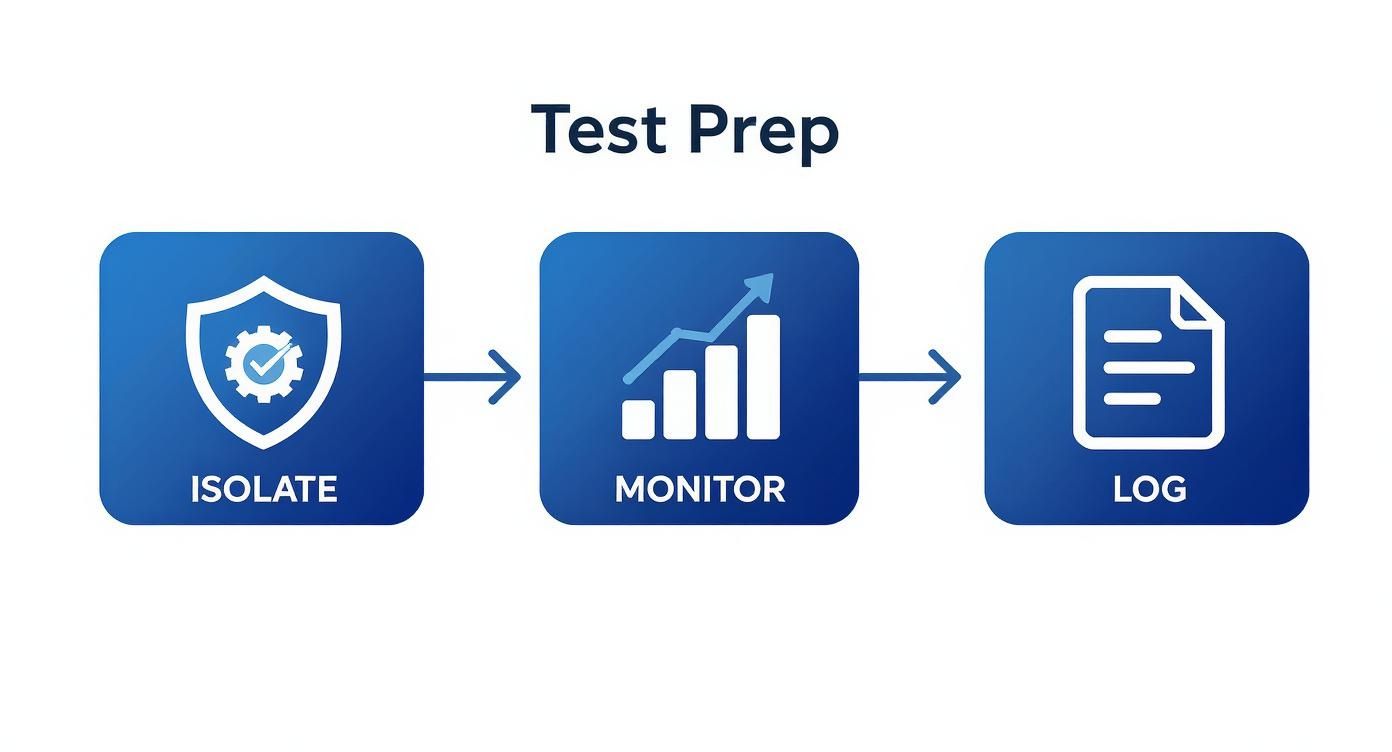
Isolating your test environment, setting up comprehensive monitoring, and enabling detailed logging aren’t just suggestions—they are prerequisites for getting reliable results.
Capturing Real Production Traffic
Getting started is surprisingly straightforward. Your first move is to listen to the network traffic on your production server. For example, if your application runs on port 8080, you can use GoReplay to capture all incoming requests and save them to a file, let’s call it traffic.gor.
Here’s the command to get it done:
sudo ./gor —input-raw :8080 —output-file traffic.gor
This tells GoReplay to listen on port 8080 and dump every request it sees into the traffic.gor file. You can let this run for an hour, a day, or even a week to build a dataset that truly represents a typical usage cycle. This captured file is now your blueprint for a realistic load test.
Replaying Traffic to Measure Throughput
With your traffic.gor file ready, it’s time to unleash this captured load onto your test server. Let’s imagine your test instance is running at http://staging-api.internal.
You’d use a command like this to kick off the replay:
./gor —input-file traffic.gor —output-http “http://staging-api.internal”
By default, GoReplay will read the requests from the file and fire them at your staging server, preserving the original timing. This is perfect for a one-to-one simulation.
Pro Tip: One of the best features is the ability to amplify traffic. By adding a multiplier, you can stress-test your system and find its actual breaking point. For instance, using
--output-http-workers 10can massively increase the concurrency of the replayed requests.
This method also directly ties into calculating network throughput—how much data moves through your system over time. If replaying your captured traffic results in a 100 MB data transfer in 10 seconds, your network throughput is 10 MB/s. It’s a critical metric for any data-heavy application.
When you combine GoReplay with the monitoring tools we talked about earlier (like Prometheus and Grafana), you can watch in real time as your system buckles—or doesn’t—under the load. This setup gives you the raw numbers you need to precisely calculate throughput and find performance ceilings before they ever impact your users.
For a deeper dive, check out this guide on using GoReplay for realistic load testing.
Turning Raw Data into Actionable Insights
Once your GoReplay test wraps up, you’re left with a mountain of metrics. This is where the real work begins—translating all that raw data into a clear, meaningful throughput figure. This is the moment you connect the dots between your load test and your system’s actual performance, turning a stream of numbers into a story about its capacity.
Your monitoring stack, especially tools like Prometheus and Grafana, is your best friend here. These tools don’t just show you what happened; they help you zero in on the exact time window of your test, correlate application behavior with system resource usage, and pull out the specific numbers you need for your calculation.
Extracting Key Metrics from Prometheus
Prometheus is brilliant for this kind of analysis because it stores everything as time-series data. The metric you’ll be most interested in is usually a counter that tracks the total number of processed requests over the test’s duration, something like http_requests_total.
To get the exact number, you’ll need to write a quick query in PromQL (Prometheus Query Language). For instance, if you wanted to find the increase in total successful requests during your test window, the query might look something like this:
increase(http_requests_total{job="your-app", status_code=~"2.."}[5m])
This query calculates the increase in requests with a 2xx status code over the last five minutes. You’d just need to adjust that time range to match the precise duration of your GoReplay test. The result gives you the “Total Units” you need for your throughput formula.
Visualizing Performance in Grafana
While a PromQL query gives you the hard numbers, Grafana helps you see the bigger picture. It hooks into Prometheus and turns those raw metrics into dashboards you can actually make sense of. Visualizing the data is so important because it can reveal patterns a single number would completely miss—like performance slowly degrading over time or weird, periodic dips in request handling.
Here’s what a typical Grafana dashboard might look like when you’re visualizing system performance.
A dashboard like this immediately shows you trends in request rates, error percentages, and latency. It lets you visually confirm that the system was stable and performing as you’d expect during the entire test period.
Crucial Insight: Your goal isn’t just to spit out a single throughput number. It’s to understand the context. A high RPS is totally meaningless if your error rates also shot through the roof or if latency ballooned to unacceptable levels during the test.
Walking Through a Real Calculation
Let’s put all the pieces together with a quick example. Imagine you ran your GoReplay test for exactly 10 minutes (which is 600 seconds).
Here’s how you’d calculate your throughput:
- Find the Total Requests: You run that PromQL query against your
http_requests_totalmetric, scoped to the test’s time window. Let’s say it tells you the application processed 1,200,000 successful requests. - Identify the Time Period: We already know the test ran for 600 seconds.
- Apply the Throughput Formula: Now you just plug those numbers into the fundamental formula:
Throughput = Total Units / Time.
So, the math looks like this:
Throughput = 1,200,000 requests / 600 seconds
That simple calculation gives you a final throughput of 2,000 RPS. Just like that, you’ve successfully translated a complex load test into a single, powerful metric that defines your system’s capacity under a realistic load.
Finding the Bottlenecks Limiting Your Throughput
Getting your throughput number is a great first step, but its true power lies in what it tells you about your system’s limits. A figure like 2,000 RPS isn’t just a benchmark; it’s a clue pointing to what’s holding you back from doing more. Now, the real work begins: moving from measurement to diagnosis.
By correlating your throughput data with other system metrics, you can start to pinpoint exactly which component is under stress. This turns a simple performance number into a strategic tool for making real improvements.
Correlating Metrics to Isolate the Problem
A drop in throughput almost never happens in a vacuum. It’s usually tied to a spike in another metric, and your job is to play detective and find the link. Did your throughput flatline the moment CPU usage slammed into 95%? You’ve probably found your culprit.
When you run your load test, keep a sharp eye on these usual suspects:
- CPU Saturation: If your CPU is constantly red-lined, it simply can’t handle any more requests. That creates a hard ceiling on your throughput.
- Memory Exhaustion: Look for signs of excessive garbage collection pauses or the system swapping to disk. Memory pressure introduces subtle latency that quietly eats away at your capacity.
- Slow Database Queries: Your application can be lightning-fast, but if it’s stuck waiting on a slow database, your transaction throughput is going to suffer.
- Network Latency: Sometimes the bottleneck isn’t even on your server. High latency between microservices or to an external API can drag the entire system down.
Expert Insight: The trickiest bottlenecks often hide at the intersection of several metrics. For example, high I/O wait times paired with only moderate CPU usage might point to an inefficient database index or a badly configured storage system.
Uncovering Hidden Performance Drags
Beyond the obvious resource limits, a few subtle factors can silently chip away at your performance. These things don’t always cause spectacular failures, but they can stop you from ever reaching your system’s true potential.
Take TLS/SSL overhead, for instance. Those cryptographic handshakes needed to secure connections consume real CPU cycles for every new connection. In the same way, the size of your request and response payloads directly hits your network throughput. Bigger payloads mean more data to cram through the same pipe, which can throttle your RPS.
These principles apply everywhere, not just web services. In global manufacturing, throughput is everything. Technologies like predictive IoT maintenance can slash downtime by 50% and cut costs by 40%, directly boosting production by keeping the line moving. You can check out more manufacturing statistics on Godlan.com.
Identifying these constraints is how you unlock better performance. For a much deeper dive into this diagnostic process, check out our guide on how to identify performance bottlenecks. It’s the knowledge that helps you go from just knowing how to calculate the throughput to knowing how to actually improve it.
Still Have Questions About Throughput?
So, you’ve run your tests and have a number in front of you. But what does it actually mean? It’s easy to get lost in the nuance, and a small misunderstanding can lead you to completely misinterpret your system’s performance.
Let’s clear up some of the questions that almost always come up.
Good Throughput vs. Bad Throughput
One of the first questions I always hear is, “Is 100 TPS good?” The honest answer is always: “It depends.”
For a complex financial transaction system, 100 TPS could be phenomenal. For a simple caching service, it might be a sign of a major problem.
A throughput number on its own is just data. It only gains meaning when you hold it up against your business goals, what your users expect, and the SLOs (Service Level Objectives) you’ve committed to. Context is everything.
Throughput vs. Latency
It’s incredibly common to mix these two up, but they measure fundamentally different things.
- Throughput tells you how much work your system can handle in a given period.
- Latency tells you how fast it completes a single piece of that work.
Think about a batch processing system. It might chew through 10,000 jobs per minute—that’s fantastic throughput. But if each individual job takes an hour to finish, the latency is terrible. You can absolutely have one without the other.
The Key Relationship: As you push for more throughput, latency almost always goes up. When a system gets closer to its limit, request queues grow longer, and individual response times start to degrade. True performance engineering is all about finding the right balance between the two.
Why Is My Real-World Throughput Lower Than My Test Results?
Ah, the classic “it worked perfectly in staging” problem. If you’re seeing a gap between your lab results and what’s happening in production, you’re not alone. There are usually a few culprits:
- Network Conditions: The real internet is a messy place. Your clean test environment doesn’t have the packet loss, jitter, and unpredictable network paths of the real world.
- “Noisy Neighbors”: If you’re in the cloud, other applications running on the same physical hardware can steal CPU cycles or I/O, hitting your performance in ways you can’t predict.
- Traffic Composition: Your load test probably used a uniform set of requests. Real user traffic is a chaotic mix of different payloads, headers, and access patterns that can expose bottlenecks you never knew you had.
This is exactly why replaying actual production traffic with a tool like GoReplay is so powerful. It helps you calculate throughput under the exact conditions your app will face in the wild, giving you a number you can actually trust. The closer your test is to reality, the fewer surprises you’ll have when you go live.
Ready to stop guessing and start measuring with real production traffic? GoReplay gives you the tools to capture and replay user activity, so you can deploy robust, high-performance applications with confidence. Learn more and get started at goreplay.org.