
Build a Powerful Apache HTTP Monitor Stack

Is your Apache server “up”? Honestly, that’s not good enough anymore. A modern Apache HTTP monitor strategy goes way beyond simple uptime checks. It’s about getting deep, actionable insights into performance, user experience, and even potential security threats. You’ll be turning your server from a black box into a completely transparent, predictable system.
Why A Modern Apache Monitor Is Mission-Critical
Let’s be real—the default Apache setup gives you almost no visibility. When something inevitably goes wrong, you’re usually left scrambling through raw log files, trying to piece together clues buried in millions of lines of text. It’s a slow, reactive, and frustrating way to work. A proper monitoring stack flips the script, giving you a real-time pulse on your server’s health.

The goal is to stop guessing and start knowing. Instead of wondering why performance tanked last Tuesday, you can pinpoint the exact moment a slow database query started overwhelming your worker threads. This proactive stance is the only way to maintain application stability and deliver a solid user experience.
Beyond Basic Uptime Checks
A solid Apache monitoring strategy answers the tough operational questions that a simple ping check could never touch. It’s the difference between flying blind and having a full instrument panel.
You can finally get answers to critical questions like:
- Performance Bottlenecks: Is the server getting swamped with too many connections, or is one specific virtual host hogging all the resources?
- User Behavior: Which endpoints are getting hammered with traffic, and which ones are throwing the most errors?
- Security Vulnerabilities: Are you seeing weird request patterns from a single IP that might signal a brute-force attack?
- Resource Forecasting: Will your current server setup survive the traffic spike from that big marketing campaign next month?
At its core, building a powerful Apache HTTP monitor stack is all about continuous monitoring—getting real-time insight into your systems. Remember the 2017 Equifax data breach? That was made possible by an unpatched Apache Struts vulnerability that went completely unnoticed for 78 days. That’s the catastrophic cost of having operational blind spots.
A monitoring system isn’t just a data firehose; it’s an intelligence engine. The gap between a minor hiccup and a full-blown outage is often measured by how quickly you can spot and understand an anomaly.
The Pillars of an Effective Monitoring Stack
To get this kind of visibility, you need a few specialized tools working in harmony. This guide will walk you through setting up a powerful, open-source stack that has become a go-to for DevOps and SRE teams everywhere.
We’ll combine real-time metrics, deep log analysis, and even traffic shadowing to build a complete picture of your server’s health. By integrating these components, you create a system that doesn’t just tell you what is happening—it helps you understand why.
Your first move in monitoring an Apache HTTP server should be to tap into a powerful tool you already have: mod_status. This native module gives you a real-time, machine-readable snapshot of your server’s health, serving as a foundational layer of metrics without any third-party software. It’s the fastest way to get a pulse on your server’s performance.
Think of mod_status as your server’s built-in diagnostic panel. It surfaces crucial data like current active connections, total requests, and the status of each worker thread. Before you can start pulling this data with tools like Prometheus, you have to enable it—and more importantly, lock it down.
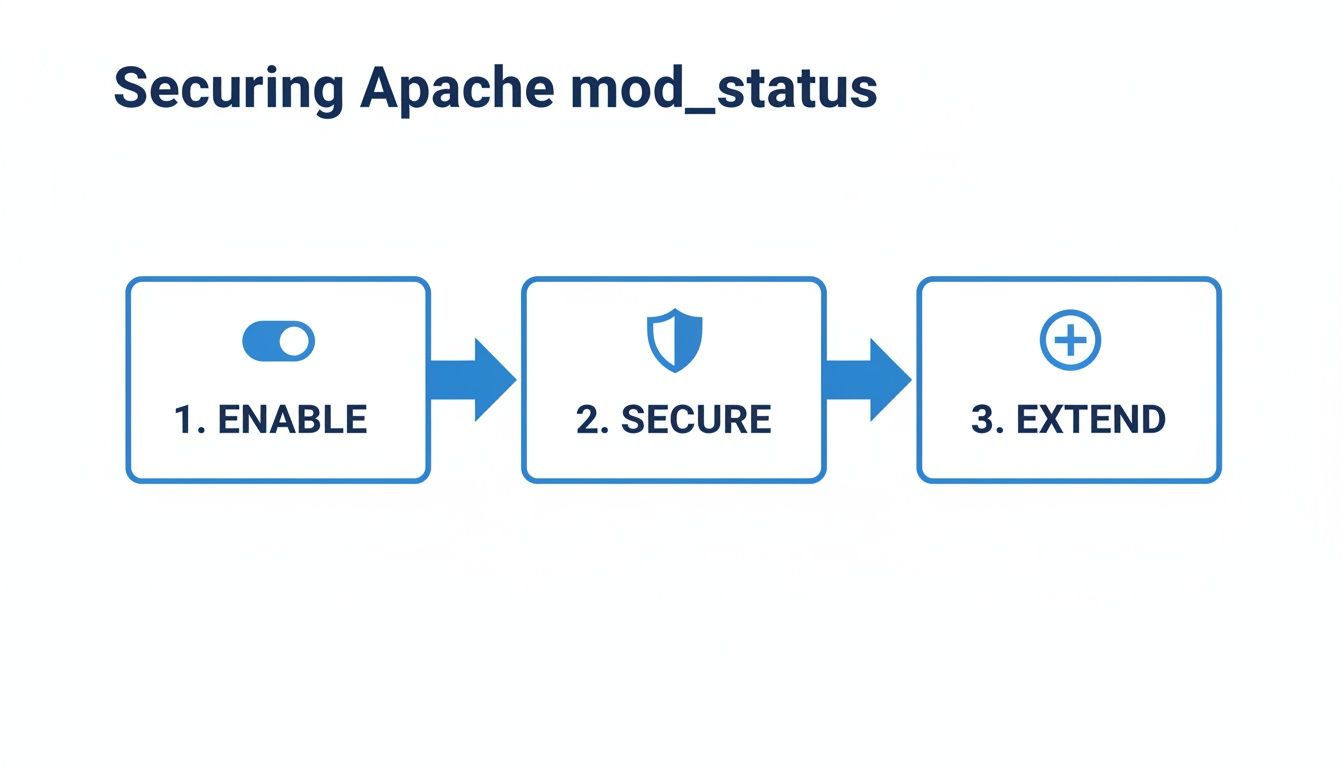
Enabling and Securing Mod_Status
Leaving your server status page open to the public internet is a massive security risk. It’s like leaving the blueprints to your server room on the front door, revealing operational data that could be a goldmine for malicious actors. The golden rule here is simple: always restrict access.
You can handle this right inside your Apache configuration file, which is usually httpd.conf or a specific virtual host file. The trick is to use the Require directive to whitelist only trusted IP addresses, like your internal network or a dedicated monitoring server.
Here’s a configuration snippet that gets the job done:
<Location “/server-status”> SetHandler server-status Require ip 127.0.0.1 ::1 Require ip 192.168.1.0/24
This config turns on the status page at the /server-status endpoint but only allows access from the local machine or the 192.168.1.0/24 subnet. It’s a simple but absolutely critical step for a secure setup.
Never expose your
/server-statusendpoint publicly. It’s an open invitation for reconnaissance, revealing details about your server version, architecture, and traffic patterns that can be exploited.
Even after all these years, Apache is still a major player on the web. It’s used by 24.3% of all websites where the server is known, holding its ground even as newer, high-concurrency alternatives pop up. This huge install base makes mastering its security quirks non-negotiable for any sysadmin. You can see more about Apache’s market share and trends on w3techs.com.
Go Deeper with ExtendedStatus
The default mod_status view is great for a high-level summary, but sometimes you need more detail. That’s where ExtendedStatus comes in. Enabling this directive tells Apache to track extra info for every single request, like the specific URL being served and the client’s IP address.
This richer dataset is invaluable when you’re deep in troubleshooting mode or doing performance analysis. To turn it on, just add one line to your main Apache configuration file:
ExtendedStatus On
Once you’ve added that and reloaded Apache, your /server-status page will now show a detailed table of individual worker processes and the exact requests they’re handling. Yes, it adds a tiny bit of performance overhead (it’s almost always negligible), but the diagnostic payoff is huge. It transforms mod_status from a simple dashboard into a granular activity log—the perfect data source for the more advanced monitoring tools we’ll set up next.
Visualizing Performance with Prometheus and Grafana
While mod_status gives you a great real-time snapshot, it’s like looking at a single frame of a movie. To really understand your server’s performance story—its peaks, valleys, and recurring headaches—you need to see the whole film. This is where a dedicated apache http monitor stack, powered by Prometheus and Grafana, turns raw data into intelligence you can actually use.
This combination is a game-changer. Prometheus is the engine, scraping your mod_status page at regular intervals to collect metrics over time. Grafana is the artist, turning those numbers into clear, insightful dashboards. You stop just reacting to problems and start proactively managing performance.
Given that Apache HTTP Server still powers around 36% of all tracked websites, this isn’t a niche problem. That’s over 4.6 million sites relying on its architecture. This massive footprint makes tailored, effective monitoring absolutely critical.
From Status Page to Time-Series Data
So, how do you get Apache’s metrics into Prometheus? Apache doesn’t natively speak the Prometheus language, so you need a translator. That’s where the Apache Exporter comes in.
This lightweight tool acts as the bridge. It periodically hits your machine-readable /server-status?auto page, grabs the data, and reformats it into the Prometheus exposition format. Suddenly, you have metrics like apache_workers_busy and apache_requests_total ready for scraping.
Getting this up and running involves a few straightforward steps:
- Deploy the Exporter: Run the Apache Exporter on the same server as your Apache instance or anywhere with network access to the
/server-statuspage. - Configure Prometheus: Add a new scrape target to your
prometheus.ymlfile. This tells Prometheus where to find the exporter’s metrics endpoint. - Lock It Down: Just like with
mod_status, make sure only your Prometheus server can access the exporter’s endpoint to keep things secure.
Once that’s done, Prometheus will start pulling data, building a rich historical record of your server’s health.
Building Your First Apache Dashboard in Grafana
With data flowing into Prometheus, it’s time for the fun part: visualization. Grafana is the go-to tool here. You can connect it directly to Prometheus as a data source and start building dashboards with its intuitive query builder.
Simply create a new dashboard and start adding panels to track your most important metrics. Using Prometheus’s query language, PromQL, you can transform the raw numbers into meaningful graphs that tell a story.
A great dashboard tells a story. It should immediately answer the most important questions: Is the server healthy? Are users seeing errors? Are we about to hit our capacity limits?
Here are a few essential panels I always add to my Apache dashboards:
- Requests Per Second: Use the
rate()function in PromQL on theapache_requests_totalmetric to see your traffic flow in real-time. A good starting point israte(apache_requests_total[5m]). - Worker Utilization: A stacked graph showing
apache_workers_busyversusapache_workers_idleis perfect for understanding server load. This is your key indicator for tuning theMaxRequestWorkersdirective. - CPU and Memory Usage: Pull in metrics from
node_exporter(another common Prometheus tool) to correlate server resource usage with Apache’s workload. This helps you spot if a traffic spike is also maxing out your hardware.
Once you have your core Apache metrics visualized, you can dig deeper and learn how to Boost VPS Performance with Prometheus Tools, which is the next logical step for optimizing the entire underlying infrastructure.
By building a custom dashboard, you create a single source of truth for your server’s performance. Your team can spot trends, diagnose issues faster, and make smart, data-driven decisions about capacity and configuration.
Finding the ‘Why’ with ELK Stack Log Analysis
Metrics from Prometheus tell you what happened—a spike in 500 errors, a sudden drop in throughput. But to really understand the why behind those numbers, you have to get your hands dirty with the logs. This is where a solid log analysis pipeline, built with the ELK Stack (Elasticsearch, Logstash, Kibana), becomes a non-negotiable part of your Apache monitoring strategy.
While your metrics give you that crucial 10,000-foot view, the logs are the ground-truth narrative of every single request. They hold the specific error messages, client details, and request paths you need to hunt down complex bugs, spot malicious behavior, and find those sneaky performance bottlenecks that metrics alone would never reveal.
Instead of SSHing into a dozen servers and manually grep-ing through massive text files, the ELK Stack gives you a powerful, open-source way to centralize, structure, and search everything from one place.
Shipping Logs with Filebeat
First things first, you need to get the logs from your Apache server over to your ELK cluster. The best tool for the job is Filebeat, a lightweight log shipper from the Elastic family. It’s designed to be incredibly resource-friendly, simply tailing your log files and forwarding new entries with a minimal footprint.
Setting up Filebeat is pretty straightforward. You just point it to your Apache access.log and error.log files and tell it where your Logstash instance is. Filebeat also handles backpressure, which is a lifesaver. If Logstash gets busy or goes down, Filebeat will hang onto the logs and resume sending when things are back online, so you don’t lose any data.
Parsing Unstructured Logs in Logstash
Once your logs hit Logstash, the real magic begins. Raw Apache logs are just long strings of text—great for humans, but terrible for a machine trying to run queries. Logstash’s job is to chop up these unstructured lines into structured JSON documents that Elasticsearch can index and search with incredible speed.
The workhorse here is the Grok filter plugin. Grok uses what are essentially named regular expressions to pluck out specific fields from a line of text. For a standard Apache combined log format, you can apply a pattern that extracts all the good stuff:
clientip: The IP address of the user.verb: The HTTP method (GET, POST, etc.).request: The specific URL path they asked for.response: The HTTP status code returned (200, 404, 503).bytes: The size of the response.agent: The User-Agent string from the client’s browser or script.
Turning a messy log line into clean, queryable key-value pairs is what unlocks truly powerful analysis.
Centralized logging isn’t just a convenience; it’s a security and operational necessity. Without it, you’re trying to solve a puzzle with most of the pieces missing, especially in a distributed environment.
Discovering Insights with Kibana
With your newly structured logs indexed in Elasticsearch, you can finally fire up Kibana to start exploring. Kibana is the visualization layer of the stack, giving you a slick interface for searching, filtering, and building dashboards. This is where you connect the dots between a metric alert and its root cause.
Let’s say your Prometheus dashboard lights up with a spike in 4xx errors. You can jump straight into Kibana and:
- Filter by Status Code: Instantly zero in on all requests that returned a 404 “Not Found” error.
- Aggregate by Request Path: Pop open a data table to see which specific URLs are generating the most 404s. This immediately points you to broken links or bad configurations.
- Identify Malicious Scans: Run a quick search for common exploit patterns in the request field, like
wp-login.phpor/etc/passwd. This is a dead-simple way to spot and block malicious scanners.
This kind of deep-dive analysis is absolutely critical for keeping a server healthy and secure. It’s especially important given Apache’s role in the wider web ecosystem. The global HTTP server market, where Apache remains a major player, was valued at $15 billion in 2025 and is projected to hit $45 billion by 2033. This growth, detailed in market trends on datainsightsmarket.com, is fueled by ever-increasing web traffic and cloud adoption, making robust monitoring more important than ever. By correlating logs with metrics, you stop just reacting to problems and start proactively optimizing your entire system.
Setting Up Alerts That Actually Matter
A dashboard full of beautiful graphs is great, but let’s be honest—a monitoring system that doesn’t tell you when something is wrong is just a passive observer. This is where you turn all that rich data into action. We’re moving from watching problems happen to getting ahead of them before they ever impact your users.
We’ll use Prometheus’s built-in sidekick, Alertmanager, to get this done. It’s the brains of the notification operation, taking in alerts from Prometheus, then smartly deduplicating, grouping, and routing them to the right people through the right channels. This is what turns your monitor from a simple reporting tool into an active guardian for your server’s health.
Crafting Alerting Rules in PromQL
The logic for your alerts lives right inside Prometheus, defined in rule files using the same PromQL you use for graphing. An alert is really just a PromQL expression that, once it evaluates to true for a certain amount of time, fires a notification over to Alertmanager.
The real trick is to create rules that are sensitive enough to catch real issues but not so twitchy that they drown your team in noise. That’s how you get alert fatigue, and it’s a fast track to having important warnings ignored.
Here are a few real-world examples for an Apache server:
- High Error Rate Alert: This one’s a classic. The rule fires if the rate of HTTP 5xx server errors climbs above a specific threshold and stays there. It’s a dead giveaway that something is broken on the backend.
- Apache Instance Down: Simple, but absolutely critical. This rule just checks if the
apache_upmetric from our exporter has been 0 for more than a minute. No server, no service. - High Latency Warning: While this isn’t a direct metric from
mod_status, you can use tools like the Blackbox Exporter to constantly probe your site. If response times start creeping up, this alert lets you know before users start complaining.
The point of a good alert isn’t just to scream “something broke!” It’s to give you a head start on the fix. A great alert is specific, actionable, and gives you just enough context to start troubleshooting immediately.
Routing Notifications to the Right Place
Once an alert fires, Alertmanager steps in. Its job is to make sure that notification lands with the right team through the right channel. A minor warning about rising worker utilization probably doesn’t need to wake someone up at 3 AM, but a full-blown site outage absolutely does.
Alertmanager’s configuration is incredibly flexible, letting you build sophisticated routing trees based on the labels attached to each alert.
Think of it this way:
- Slack for General Issues: Send non-critical alerts, like a temporary spike in 404s, to a team’s Slack channel. It keeps everyone in the loop without causing a panic.
- PagerDuty for Critical Incidents: Route the really severe stuff, like an
ApacheInstanceDownalert, straight to an on-call rotation via PagerDuty. This ensures an immediate human response when every second counts. - Email for Reports: Use email for daily summaries or less urgent notifications that don’t need immediate action, like an upcoming SSL certificate expiration.
By routing alerts intelligently, you ensure the right people get the right information at the right time—without the burnout. This is how your Apache monitor becomes a reliable, trusted system that actively helps you keep the lights on.
Testing Your Setup with Real Traffic Shadowing
You’ve built the dashboards. You’ve configured the alerts. But the one question that should be keeping you up at night is: how will this brand-new Apache HTTP monitor stack hold up when real, messy, unpredictable production traffic hits it?
Validating your setup against authentic user behavior is the ultimate confidence check. This is where a powerful technique called traffic shadowing comes into play. It’s how you find the blind spots before they become production incidents.
The idea is to capture live HTTP requests from your production servers and replay them against a staging environment where your new monitoring stack is running. This gives you a front-row seat to see exactly how everything—from the Apache Exporter to your Alertmanager rules—reacts to a genuine workload, all without putting your live services at risk.

Introducing GoReplay for Realistic Validation
For this job, the open-source tool GoReplay is purpose-built. It works by passively listening to traffic on a network interface on your production Apache server, a bit like a network sniffer. It then forwards a copy of those requests over to your staging environment without adding any noticeable latency to the production request-response cycle.
It’s surprisingly simple to get a basic traffic shadow running. A single GoReplay command can specify the listening port (like port 80 on your production machine) and the target server address for the replay. The entire process is invisible to your end-users. You can dive deeper into the specifics by exploring guides on shadow testing.
The real goal of traffic shadowing isn’t just about load testing; it’s about behavioral validation. Will a weird user-agent string break your log parsing? Does a sudden burst of signups trigger alerts correctly? Shadowing gives you the real answers.
By replaying real-world traffic, you get to fine-tune every part of your monitoring stack. You might find a specific API call is throwing off your Grafana dashboards or that a certain request pattern is causing your Logstash Grok filters to fail silently.
Discovering and fixing these kinds of issues in a safe staging environment is infinitely better than scrambling to figure them out during a production outage. It’s the final, and most important, step in building a monitoring system you can truly trust.
Common Questions When Monitoring Apache
Whenever you’re putting together a new monitoring pipeline, questions are bound to pop up. It’s just part of the process, especially when you’re stitching together multiple tools to get a full picture of your Apache HTTP server’s health. Let’s walk through some of the most common ones I hear.
Will This Slow Down My Server?
This is usually the first thing on everyone’s mind. Will running an Apache Exporter, Filebeat, and GoReplay drag down my production server? The short answer is: barely, as long as you set them up right. These tools are built from the ground up to be incredibly lightweight.
- Apache Exporter: This little tool just makes a simple HTTP request to the
/server-statuspage. It’s a very cheap, low-impact operation. - Filebeat: It’s engineered for efficiency. Filebeat uses minimal CPU and memory to simply tail your log files and ship new lines as they appear.
- GoReplay: This one is especially clever. It listens passively on the network interface, like a fly on the wall. It doesn’t get in the middle of the actual request/response cycle, so its performance impact is negligible.
How Do You Handle Log Rotation?
Log rotation is another big one. What happens when Apache rotates its access.log and error.log files? It’s a daily reality for any busy server, and thankfully, modern log shippers like Filebeat handle it without breaking a sweat.
Filebeat doesn’t track files by name; it tracks them by their inode. When a log file gets rotated, Apache creates a new file with a new inode. Filebeat sees this change, makes sure it finishes reading the last bits from the old file, and then seamlessly picks up tailing the new one. The result? No log data is lost during the switch.
The key takeaway here is that modern monitoring agents are built for the real world. You don’t need to get tangled up in complex scripts or workarounds for things like log rotation—the tools are smart enough to manage it right out of the box.
Do I Need Both Metrics and Logs?
Sometimes teams wonder if they can get away with just one data source. Can’t you get everything from metrics, or just parse the logs? While there’s a little overlap, they really serve different purposes and help you answer very different questions.
| Data Source | Purpose | Key Questions Answered |
|---|---|---|
| Metrics (Exporter) | The quantitative “What” | What’s our current request rate? How many workers are busy? |
| Logs (Agent) | The qualitative “Why” | Why did that specific request fail? Who is hitting this URL? |
Think of it this way: metrics are your high-level dashboard. They tell you the server’s health at a glance. Logs are your diagnostic microscope, giving you the granular detail needed to hunt down the root cause of an issue. A truly effective Apache monitoring strategy needs both to go from “something’s wrong” to “I know exactly what’s wrong and how to fix it.”
Ready to validate your monitoring setup with real-world traffic? GoReplay is an open-source tool that lets you capture and replay live HTTP traffic into your test environments. It’s the best way to ensure your dashboards and alerts behave as expected before you go live. Find out more at the official GoReplay website.